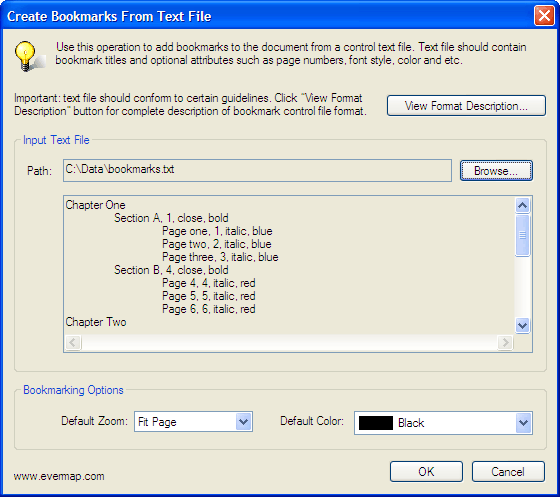
New bookmarks can be added to the PDF document from a control ASCII text file. The control file format is a delimited ASCII text (comma, tab, semicolon, and space delimiters are supported) that contains bookmark titles and their optional attributes such as text style, color, zoom, destination page, open/close state, named destination and optional keywords for specifying bookmark actions. The following bookmark actions are supported:
Multilevel bookmark hierarchy can be defined by properly indenting each bookmark definition record. It is also possible to export bookmarks into a text file using "Plug-ins > Bookmarks > Export > To Text..." menu and use it to add bookmarks to another document.
Preparing a Bookmark Control File
Use any text editor of your choice to create a bookmark control file. Create a new blank document and add bookmark definitions using the following format. Each bookmark definition should appear on a single line. Left indentation is used to determine parent-child relationships. It is recommended to use <Tab> or space symbols for indenting text lines (make sure you are not using tab or space delimiter at the same time). For example, the following text defines two top level bookmarks with two child bookmarks each:
Chapter 1
Paragraph 1.1
Paragraph 1.2
Chapter 2
Paragraph 2.1
Paragraph 2.2
Each bookmark definition record should occupy only a single line and is required to contain at least one element – a bookmark title. All other bookmark attributes are optional and can be added after a bookmark title using comma as field delimiter. Bookmark destination page (the page displayed in the viewer when user clicks on a bookmark) should always follow the title (if a page number is specified) and cannot appear in any other position in the record. All other attributes can appear in any order. It is important not to use comma for anything else besides a field delimiter. Blank lines are allowed in the file and will be ignored. The example below shows the same bookmark structure as in example above, but with destination pages (pages 10, 15, 20 and 25) associated with four of the child bookmarks.
Chapter 1
Paragraph 1.1, 10
Paragraph 1.2, 15
Chapter 2
Paragraph 2.1, 20
Paragraph 2.2, 25
Destination page numbers should be always in the range between 1 and total number of pages in the target document. If destination page is outside of this range or is not specified, then no action will be assigned to the bookmark. Destination page definition should always appear right after a bookmark title. If a valid page number is specified, then a “Go to a page in this document” action is assigned to a bookmark. If a page number and a file definitions appear in a same record, then a "Go to a page in another document" action is assigned to the bookmark.
Adavanced Feature: It is possible to specify a page shift to offset page numbers specified in the description string:
Chapter 1
Paragraph 1.1, 10, +2
Paragraph 1.2, 15, +2
In the above example, page numbers 10 and 15 will be increased by 2 before creating an action and therefore will point to pages 12 and 17 respectively. This feature is used when it is necessary to convert page numbers specified in some existing text file (that contains incorrect page numbers) without re-calculating all page numbers.
Use the following keywords to optionally define bookmark appearance attributes. Keywords are case-insensitive.
|
Keyword |
Meaning |
||||||
| uri: or http:// |
Specifies a URL to open. If this keyword is specified, then a
bookmark action is set to "Open a web link" action. For example, if
bookmark record contains uri:http://www.cnn.com
entry, then this internet location will be displayed in the
viewer when user clicks on the bookmark. It is also possible to simply use http://mywebsite.com
to specify an HTTP link. However, always use uri: keyword while
specifying non-HTTP links such as links to files. Examples: uri:myfile.pdf - refers to file myfile.pdf located in the same folder as a current document uri:myfile.pdf#myview - refers to a named destination "myview" located in the file myfile.pdf uri:myfile.pdf#search="word1,word2" - opens a file myfile.pdf and searches for words "word1" and "word2" uri:myfile.pdf#page=10 opens a file myfile.pdf and displays page 10. http://www.evermap.com opens a www.evermap.com web page in the default browser. Click here for a full list of parameters that can be used for opening PDF documents. |
||||||
| file:// |
Specifies a relative path to a file. This keyword can be used
to specify two different types of bookmark actions: "Open a file" and "Go
to a page in another document". If destination page number is
specified, then a bookmark action is set "Go to a page in another document"
otherwise it is set to "Open a file" action.
IMPORTANT: file path is relative to a current document location. For example, if you want to link to a file that is located in a subfolder "Notes" (one level below a current document), then use the following path: file://Notes/MyDocument.pdf |
||||||
| jscript: | Specifies Acrobat JavaScript code to execute. The code should be on a single text line (no line breaks). All commas, tabs and other possible delimiters must be encoded using HTML codes (use , for comma) to avoid confusing the legitimate code with a field delimiter. | ||||||
| @destination | Specifies a named destination to use. For example, @First Paragraph entry will refer to a named destination "First Paragraph". Named destinations can be used for both local and remote page references. | ||||||
| plabel: | Specifies a page label of the destination page. For example: plabel:ix specified that destination page should have ix label in the thumbnail view. This keyword is helpful when it is necessary to define destination pages via page labels instead of physical page numbers. | ||||||
| menu: | Specifies a named action ("Execute a menu item"). For example, menu:FirstPage keyword sets bookmarks action to display a first page of a document. Standard named actions include: "NextPage", "PrevPage", "FirstPage", and "LastPage". These actions are supported on all PDF viewers. Many other named actions (that correspond to specific menu entries) can be used, however keep in mind that they may not be available in some PDF viewers. For example, "DeletePages" action (menu item) is not available in Adobe Acrobat Reader. | ||||||
|
close |
Bookmark will appear in the “closed” state (not showing its children). By default, all new bookmarks are shown in the “open” state. You can also use “open” keyword, but it is not necessary. |
||||||
| NewWindowYes | Open a new document in the new window. If this keyword (and NewWindowNo) is ommited then current Acrobat settings are used to open new documents. | ||||||
| NewWindowNo | Open a new document in the same window. If this keyword (and NewWindowNo) is ommited then current Acrobat settings are used to open new documents. | ||||||
|
bold |
Bookmark title appears in bold text style |
||||||
|
italic |
Bookmark title appears in italic text style |
||||||
|
{FitType,...} |
Specifies a destination view as a combination of
Fit type, destination rectangle and a zoom factor.
|
||||||
| InheritZoom | Sets zoom type to "Inherit Zoom" for this bookmark | ||||||
| FitWidth | Sets zoom type to "Fit Width" for this bookmark | ||||||
| FitVisible | Sets zoom type to "Fit Visible" for this bookmark | ||||||
| FitPage | Sets zoom type to "Fit Page" for this bookmark | ||||||
| ActualSize | Sets zoom type to "Actual Size" for this bookmark | ||||||
|
red |
Bookmark title appears in red color |
||||||
|
green |
Bookmark title appears in green color |
||||||
|
blue |
Bookmark title appears in the blue color |
||||||
|
#xxxxxx |
Bookmark title appears in the custom color. The 6 digit hexadecimal HTML color code will be used to define a bookmark title color. Hexadecimal color codes are widely used for defining colors in HTML and web pages. You can find a complete list of HTML color codes on numerous web pages on the internet (for example http://html-color-codes.com/ has a good selection of colors). Here are few examples of the hexadecimal color codes:
|
Here is a sample of the control file (comma-delimited) that uses many of the keywords above. Keywords are shown in blue, destination pages in red and bookmark titles appears in green color.
Chapter One
Paragraph A,
1, close, bold,
ActualSize
Page one, 1,
italic, blue
Page two, 2,
italic, blue
Page three, 3,
italic, blue
Paragraph B,
4, close, bold,
InheritZoom
Page 4, 4,
italic, red
Page 5, 5,
italic, red
Page 6, 6, italic,
red
Chapter Two
Paragraph C,
1, close, bold,
FitWidth
Page 7, 7,
italic, #FF7F50
Page 8, 8,
italic, #FF7F50
Page 9, 9,
italic, #FF7F50
Paragraph D,
4, close, bold,
FitVisible
Page 10, 10,
italic, #FF00FF
Page 11, 11,
italic, #FF00FF
Page 12, 12,
italic, #FF00FF
Appendix A, 13,
FitPage
Appendix B, 14,
FitPage
Index, 15
Another set of examples illustrates advanced features such as linking to web pages, starting external applications, executing menu items, using named destinations, and opening documents:
View AutoBookmark Webpage, http://www.evermap.com/autobookmark.asp
Start External Application,
file://myapplication.exe
Open Microsoft Word File,
file://mydocument.doc
Open Another PDF Document,
file://anotherpdf.pdf
Open Document In New Window,
file://anotherpdf.pdf,NewWindowYes
Open Document In Same Window,
file://anotherpdf.pdf,NewWindowNo
Go to a page in another PDF,1,
file://anotherpdf.pdf
Go to a named destination,@FirstChapter
Go to a named destination in another document,@FirstChapter,file://anotherpdf.pdf
Execute a menu item (Go to Next Page),menu:NextPage
Importing Bookmarks From a Text File
1. Open a PDF document to add bookmarks to by selecting "File > Open..." from the main menu.
2. Select "Plug-ins > Bookmarks > More > Create From Text File..." from the menu. "Create Bookmarks From Text File" dialog should appear on the screen.
3. Click "Browse..." button and select bookmark control file.
4. Input file will be load into preview area. You can review the content of the text file.
5. Select "Default zoom" and "Default color" options. These options will be used for bookmarks that do not have corresponding attributes specified.
6. Select field delimiter to use while parsing this file. Comma, tab, semicolon and space characters can be used as a delimiter.
6. Click "OK" button to generate bookmarks from the selected control file.
It is also possible to use the these action definitions while importing bookmarks from a text file.