AutoBookmark™ plug-in for Adobe® Acrobat®
AutoBookmark Plug-in for Adobe Acrobat
Software Functionality
What is AutoBookmark™ Plug-in?
AutoBookmark™ is an advanced plug-in for Adobe® Acrobat® and Adobe® Acrobat Professional® software. The software is designed to create, edit and maintain all navigational elements of PDF documents:
The plug-in helps to quickly add bookmarks, links, named destinations and text highlights across one or more PDF documents making them easier to navigate and read. Software is available in two levels: Standard and Professional.
Bookmarking Functionality
PDF documents are much easier to navigate and interact with when they contain a navigable table of contents (bookmarks). Their appearance can be altered to make them easy to find and organize by using bookmarks to link to a different location in the open PDF file or even another PDF file. The plug-in allows automatic creation of bookmarks (outlines), for PDF documents, based on text formatting styles, indentations and document contents. AutoBookmark™ plug-in helps to quickly add multi-level bookmarks across one or more PDF documents making them easier to navigate. The software has special features for formatting bookmark titles and controlling their visual appearance. The software provides intuitive user interface that is easy to use for power users as well as for beginners.
AutoBookmark™ provides the following bookmarking functionality:
Automatic bookmark generation from text content
Bookmark text from a user-defined search list
Bookmark text patterns
Creating bookmarks from links, text highlights, comments and destinations
Creating bookmarks from ASCII text files
"Bind" PDF documents with common navigational bookmarks
Adding bookmarks to files and folders
Easily link existing bookmarks to external files
Copying bookmarks from other documents
Bookmarking every Nth page
Validating bookmarks
Sorting bookmarks
Sorting pages based on bookmark order
Duplicating bookmarks
Merging duplicate titles
Replacing bookmark text
Adding text before and after bookmark titles
Expanding or collapsing bookmark levels
Editing bookmark visual appearance
Changing bookmark nesting levels
Removing bookmark actions and child items
Deleting bookmark levels
Changing bookmark zoom
Changing text case
Converting bookmarks to use named destinations
Printing bookmark titles and bookmarked pages
Exporting bookmarks to text, HTML and XML
Deleting all bookmarks in a document
Converting "File" to "Open a weblink" action
Print bookmark titles on the corresponding pages
Batch processing support
Linking Functionality
Links are an essential part of any well designed PDF document. With thoughtfully provided links, users can quickly move from one part of a PDF document to another, to related information in a different document, or to a website that is relevant to the content. Clicking a link in a PDF is similar to clicking a link on a web page. Links can take you to another location in the current document, to other PDF documents or files, to websites or even execute a menu item. Creating links manually is a tedious and time consuming process especially for large documents. AutoBookmark™ plug-in provides a set of easy-to-use software tools for automated link generation and editing.
AutoBookmark™ provides the following linking functionality:
Easily inspect link actions
Automatic link generation for user-defined words and phrases
Adding links to page numbers and table of contents
Adding Links By Text Search
Importing links from ASCII text file
Exporting links to ASCII text files for advanced editing
Creating a link report
Working with link errors
Cleanup Links and Bookmarks
Fixing File Link Errors In Document Sets
Editing existing link and bookmark actions
Editing file and web references
Changing a visual appearance
Changing a zoom type
Edit link areas
Changing open preference for linked documents
Converting links to use named destinations
Deleting links from selected pages or the whole document
Batch processing support
Named Destination Support
A destination is the end point of a link or a bookmark and is represented by text in the "Destinations" panel of Adobe® Acrobat®. Destinations enable you to set navigation paths across a collection of PDFs. Linking to a destination is recommended when linking across documents because, unlike a link to a page, a link to a destination is not affected by the addition or deletion of pages within the target document. AutoBookmark™ Destinations can be used in HTML links to open a PDF document at desired location. Creating named destinations can be a very time consuming and tedious task. The AutoBookmark™ plug-in provides a variety of functions that can significantly simplify and speedup this process.
The AutoBookmark™ provides the following functionality for named destinations:
Creating destinations from bookmarks
Creating destinations from links
Creating bookmarks from named destinations
Exporting named destinations to a text file
Importing named destinations from a text file
Deleting all named destinations
Table of Contents Functionality
The AutoBookmark™ provides functionality for automatic generation of hyperlinked table of contents pages from existing PDF bookmarks:
Creating table of contents pages from bookmarks
Deleting previous generated table of contents pages
Highlight Text
The AutoBookmark™ provides the following functionality for text highlights:
Highlight bookmarked text
Highlight words and sentences from a list
Delete all highlight annotations
AutoBookmark™ Product Levels: Standard vs Professional
The software is available in two product levels: Standard and Professional. Both levels have identical functionality except batch processing support (batch processing commands for: bookmarking, linking), that is only available in AutoBookmark™ Professional plug-in. All other functionality, menus and toolbars are the same.
Related Links
Download Free 30-Days Trial Version
Buy software online
System Requirements
Application Menus and Toolbar
Bookmarking menu:
Linking menu:
Application Toolbars:
Features Summary / Bookmarking
Automatic Bookmark Generation From Document Content
AutoBookmark™ plug-in automatically generates multi-level bookmarks from the text attributes such as font name, size, left indentation and content. The software creates bookmarks from a matching single or multi-line text. The "Select Text" tool from Adobe® Acrobat® toolbar can be used to simplify bookmark level definition from text samples. The software scans pages of input PDF document and finds all occurrences of the matching text. The matching text is then used to create bookmarks. The bookmarks are automatically arranged into a nested hierarchy based on user settings. More than one font style can be used to describe each bookmark level. The software allows to perform a partial matching on font names and styles. The ability to work with multiple font styles and text patterns sets AutoBookmark™ plug-in apart from the other available tools on the market. Click here to download a visual step by step guide to bookmarking by text style.
Text Patterns
Text patterns can be used for precise control over the bookmark title generation when it is necessary to bookmark locations based on text content. The software uses powerful regular expressions for defining text patterns that describe a particular bookmark level headings. Only text that matches a specified text pattern is used for a bookmark title. Regular expressions are also optionally used to transform bookmark titles into a desired format. Here is an example of a simple pattern that matches all text lines that start with the word "Chapter":
Stop Words
The software provides a way to ignore unwanted bookmark titles. User-defined list of "stop words" is used to check each bookmark title against it. Bookmarks that contain any keyword from the "stop words" list are excluded from the output.
Bookmark Appearance
AutoBookmark™ plug-in provides fine control over the bookmarks' color, style and zoom type. Appearance of each bookmark level can be specified independently. Bookmark style can be set to one of the following: "plain", "italic", "bold", and "italic & bold". Zoom type controls the way a bookmarked location is displayed in the Acrobat viewer. Available list of Acrobats standard zoom types includes: "Fit Page", "Fit Width", "Fit Visible", "Actual Size", and "Inherit Zoom". Each bookmark level can be set to display in an expanded or collapsed state.
Bookmark Content
Bookmarks titles can be modified by adding custom text before and after each title or by completely changing or re-arranging bookmark text. Text case can be automatically changed to fit a desired style. This feature allows creating uniform and elegant appearance of the bookmark titles. Automatically add or remove leading numbers of the bookmark titles. Use numbers, letters or roman numerals for title enumeration. This software provides a way to limit the length of the bookmarks' text to avoid long unreadable bookmarks. Hyphenation can be optionally removed at the end of the lines. Use powerful regular expressions to search and replace bookmark titles.
Batch Processing
Users of Adobe® Acrobat Professional® (for versions 6.0 and up) and Adobe® Acrobat® 5.0 can use batch processing to add bookmarks across several PDF documents at once. AutoBookmark™ plug-in adds the "Generate Bookmark" (and several others) command to Acrobat's batch processing framework. This command can be used in any other batch sequence to automatically generate bookmarks for a document. Batch sequences can be executed on individual PDF files as well as on folder content.
Bookmark Words From List
Bookmark text in the document using a user-defined list of search terms. The plug-in is capable of searching and bookmarking thousands of words / sentences at once. A variety of search options can be used including limiting a bookmark to a specific range of pages, matching optional page label, skipping duplicate bookmarks and etc. This function can be effectively used to bookmark table of contents entries in PDF documents including cases when physical page numbers do not correspond to printed page labels. This operation is also available as a batch command.
Bookmark Text Patterns
Bookmark all occurrences of a specific text pattern(s) in the PDF document using regular expressions. This is a very powerful method that allows bookmarking of complex documents that are otherwise hard or impossible to bookmark using other methods. Regular expressions are used to describe text patterns that have a common structure but are too numerous to enumerate. This method can be used to bookmark chapter titles, product SKUs, phone numbers, emails, web addresses, various codes, and other text patterns that typically occur in the legal or business documents. Contact our technical support if you need help on using this feature with your particular documents.
Creating Bookmarks From Links
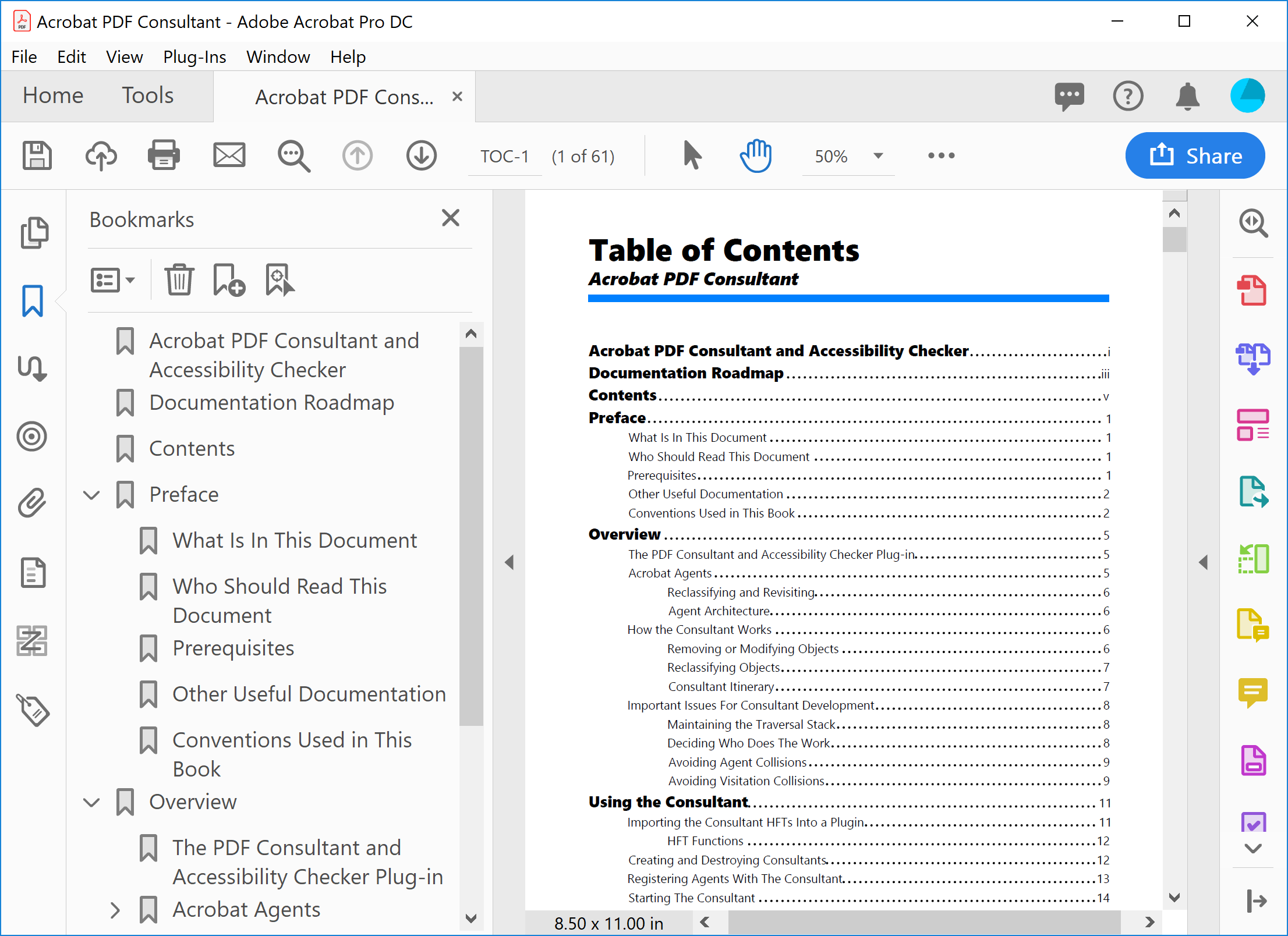
Automatically convert links in the PDF documents into interactive bookmarks. The plug-in converts each occurrence of the link annotation into a bookmark. Text covered by a link annotation is used as a bookmark title. Bookmarks will have the same actions as corresponding links. This operation provides a quick way of converting a hyperlinked table of contents into a set of interactive bookmarks. Tab leaders, page numbers, extra text lines, or duplicates spaces can be optionally removed from the bookmark titles. Click here to see a screenshot.
Creating Bookmarks From Comments
Automatically create bookmarks from notes and comments. Many types of commenting and drawing annotations can optionally have text comments attached. The plug-in scans a PDF document and bookmarks all locations of such annotations. The text content of the comment is used for the bookmark title. The bookmarks will point to the locations of corresponding annotations. Bookmark color can be optionally inherited from the originating annotation. There are options for removing duplicate spaces and extra text lines from bookmark titles. Click here to see a screenshot.
Bookmarks from comments
Bookmark Highlighted Text
Easily bookmark all text markup in the document. The plug-in can bookmark locations of every instance text highlight, underline or strikeout. Text behind each annotation is used for a bookmark title. This procedure provides a great interactive way of adding bookmarks to the document while reading it. Simply highlight all the text that needs to be bookmarked and press a button to create bookmarks out of the text markup.
Bookmark highlighted text
Creating Bookmarks From Named Destinations
Named destinations are often used to define navigation paths across one or more PDF documents. A named destination is a combination of a text label (name) and a viewing area definition (such as page number and zoom type). Bookmarks can be easily created from existing "Destinations" records. Each bookmark is gets the same title as the corresponding named destination and uses it to define its action.
Creating Bookmarks From Text File
New bookmarks can be added to the PDF document from a control ASCII text file. The bookmark control file (click here for examples and format description) is a comma-delimited ASCII text that contains bookmark titles and their optional attributes such as text style, color, zoom, destination page and open/close state, named destination and optional keywords for specifying bookmark actions. The following bookmark actions are supported: "Go to a page in current document", "Go to a page in another document", "Open a web link", "Open a file", and "Execute menu item". Multilevel bookmark hierarchy can be defined by properly indenting each bookmark definition record. Click here to see a screenshot of the application dialog.
"Bind" PDF Documents with Common Navigational Bookmarks
Make large PDF document collections easier to navigate with a common set of navigational bookmarks. Bookmarks are automatically created to point to each file in the collection. Simply click on a bookmark to open another document in the collection. It takes just few seconds to turn a large unmanageable collection of PDF files into a perfectly interactive and navigable “binder” ready to be placed on a CD/DVD or published online. Read more about this functionality.
Add Bookmarks To Files
Automatically add bookmarks to selected files (any kind) or all PDF files in the selected folder (including sub-folders). New bookmarks are created by using file and folder names as bookmark titles. Each bookmark is assigned a "relative path" to link to a target file (using an "Open a file" action). The plug-in provides a variety of options to control the visual appearance of the bookmarks and the way external files are opened (in a new window, in the same window or using preferences). Click here to see a screenshot of the application dialog.

Link Existing Bookmarks To External Files
Easily link existing bookmarks to external files of any type.  Adobe Acrobat does not provide a good interface for quick linking of multiple bookmarks to external files. The process is very slow and requires a lot of mouse clicking and opening of several dialog windows. This plug-in provides a very easy to use dialog that only requires a minimum number of clicks to link a bookmark to a file.
Bookmarking Every Nth Page
Automatically bookmark every Nth page in the document. Bookmarks can be generated just for a selected page range or for the whole document. Bookmark titles can be customized to include page numbers, page labels, first line of page text and etc. This is the easiest method to add bookmarks to unstructured documents. Click here for a screenshot.
Expanding or Collapsing Bookmark Levels
Easily expand or collapse all bookmarks in the document or just bookmarks at specific nesting level.

"Find and Edit" Bookmarks
Select bookmarks based on title text and other attributes to apply a wide variety of editing operations. Selected bookmark levels, bookmarks and their children can be duplicated, deleted, stripped of actions, expanded or collapsed, their appearance modified, moved one level up and etc. Bookmarks are selected by performing a text search (regular expressions are supported) and further filtered by their attributes such as presence of actions, types of the destinations, and presence of child bookmarks. This operation provides a powerful and flexible mechanism for managing existing bookmarks in PDF documents. Click here to see a screenshot.
Sorting Bookmarks Alphabetically
Bookmarks can be sorted alphabetically in ascending or descending order. Individual bookmarks or whole bookmark levels can be sorted separately. Click here to see a user interface screenshot.

Sorting Bookmarks By Referencing Page Numbers
Bookmarks can be sorted by referencing page numbers in ascending or descending order. Individual bookmarks or whole bookmark levels can be sorted separately.

Validating Bookmarks
Existing bookmarks can be automatically validated by verifying their actions. Destination pages are checked to make sure they are referring to valid page numbers. External links are verified to make sure they are pointing to existing files or documents. The automatic validation procedure also catches other common problems such as missing titles or bookmarks with no assigned actions. This operation can be also executed in the Acrobat batch processing framework. Validation results are written to a text log file (sample log file). Click here to see a screenshot.
Sorting Pages
Sort document pages based on the bookmark order. Pages that appear first in the bookmark tree will be moved to the beginning of the document. The plug-in correctly handles page ranges (no need to bookmark every page) and quickly arranges pages into the desired order.
Duplicating Bookmarks
Easily duplicate existing bookmarks including all child bookmark entries. The duplicate bookmarks retain all properties of the originals including action and visual appearance.
Merging Duplicate Titles
Consecutive bookmarks with identical titles can be merged into a single bookmark with their child bookmarks consolidated. One or more bookmark levels can be merged recursively.

Copying Bookmarks
Copy bookmarks from another PDF document to a currently open document or copy all bookmarks from a current document to a set of PDF files and folders (all PDF files in a folder are processed). Bookmark actions (hyperlinks) can be adjusted to point either to the locations within the source PDF document or converted to the same locations within a destination file. Bookmarks can be inserted before, after or in place of existing bookmarks. This powerful option allows a free transfer of bookmarks between documents. This operation is useful when a set of common pre-defined bookmarks needs to be added to a new document(s). Click here to see screenshots: "Copy Bookmarks From" and "Copy Bookmarks To Files".
Replacing Bookmark Text
Bookmark titles can be searched for occurrence of a specific text string and replaced with new text. The software provides the option for case-insensitive search and Unicode encoding. Regular expressions are supported. Click here to see a screenshot.
Adding Text To Existing Bookmarks
Easily add text before and after existing bookmark titles (prefix and suffix). Processing can be applied to one or more bookmark levels at once. White space characters are optionally trimmed from the original bookmark titles. It is also possible to insert page numbers, named destinations, bookmark levels, web addresses and file names that the bookmarks are refering to.

Changing Zoom Type
Change zoom type for all bookmarks in the document to one of the following: "Fit Page", "Fit Width", "Fit Visible", "Inherit Zoom", "Actual Size", "Custom View" or "Custom Zoom". This operation only affects bookmarks with "Go to a page in this document" and "Go to a page in another document" actions. Click here to see a screenshot. Here is some helpful information about a very popular task of converting bookmarks to use "Inherit Zoom" zoom type.
Changing Text Case
Automatically convert bookmark text to uppercase, lowercase, sentence case or title case. The plug-in provides the ability to specify a list of custom words that should not be capitalized when converting to title case as well as the option to not capitalize certain words such as "a,an,and,as,at,but,by,e.g.,e.g,etc...".

Converting Bookmarks To Named Destinations
Convert bookmark actions to use "named" destinations instead of direct references to a page. Destinations are automatically generated from existing bookmarks. Named destinations enable you to set navigation paths across a collection of PDF documents. Linking to a destination is recommended when linking across documents because unlike a link to a page, a link to a destination is not affected by the addition or deletion of pages within the target document. Named destinations can be also shared between multiple links or bookmarks within a document. For example, instead of using a direct link to page 10, a bookmark will point to the named destination "Chapter 1" . You will be able to link to this location using a human-readable name instead of a page number. Click here to see a screenshot.
Converting "File" Action to "Open a web link" Action
Convert "Go to a page in another document" and "Open a file" actions to "Open a web link" actions. This operation can process both bookmarks and link annotations.
Printing Bookmark Titles
The plug-in can print all bookmark titles for the currently open PDF document. Bookmark titles are indented according to their nesting level to reflect parent-child relationships and printed to a default printer. Here is an example of the sample printout:
Contents
Preface
Introduction
Audience
Related Documentation
Conventions Used In This Document
Overview
Terms and Conditions
Acceptance of Terms
Accuracy, Completeness and Timeliness of Information
Editing, Deleting and Modification
Confidentiality
Disclaimer
Product Pricing and Descriptions
Printing Bookmarked Pages
Use the plug-in to print bookmarked pages or whole page ranges defined by consecutive bookmarks. Each bookmark is shown with a corresponding page range appended to the title (“Pages X to Z”). Use these page ranges as a guidance while selecting bookmarks for printing. Page ranges can be printed as one printing job or as separate printing jobs for each page range.
Printing Bookmark Titles on the Corresponding Pages
Print bookmark titles on the pages that they are referring to. Choose font, size and color for the output text as well as the position on the page.
Exporting Bookmarks
Bookmarks can be exported to a plain ASCII text file format (sample output), HTML file format (most bookmark actions are preserved in hyperlinks) or an XML document (sample output). Most bookmark attributes are exported into both text and XML format: title, destination page number, indentation, style, color, associated action type, destination view, zoom factor and external file references. Titles are properly indented to reflect parent-child relationships between bookmarks. HTML output preserves most common bookmark actions as HTML hyperlinks and can be used to create a web index to PDF documents.
Deleting All Bookmarks
All bookmarks can be quickly deleted from the document with just one mouse click. Use "Find and Edit Properties..." menu to delete only a selected level of bookmarks while keeping all child bookmarks.
Batch Processing Support for Bookmarking
Users of Adobe® Acrobat Professional® (for versions 6 and up) and Adobe® Acrobat® 5.x can use batch processing framework to automate many bookmark-related operations. AutoBookmark™ Professional adds the following commands to the batch processing framework:
"Add Prefix/Suffix" - add suffix and/or prefix to bookmark titles.
"Bookmark Words From List" - bookmark words and sentences from a list.
"Bookmark Text Pattern" - use regular expressions to bookmark any text pattern in the document.
"Create Bookmarks From Links" - convert links into interactive bookmarks.
"Create Bookmarks From Comments" - create bookmarks from notes or comments.
"Create Bookmarks From Named Destinations" - create bookmarks from named destinations
"Create Bookmarks From Text" - create bookmarks from a control file.
"Convert To Named Destinations" - convert bookmarks to use named destinations.
"Change Text Case" - change case style of the bookmark text.
"Copy Bookmarks" - copy bookmarks from one PDF document to another.
"Delete All Bookmarks" - delete all bookmarks from a document.
"Export Bookmarks To Text" - export bookmarks to ASCII text file.
"Export Bookmarks To XML" - export bookmarks to an XML file.
"Generate Bookmarks" - generate bookmarks based on text style, layout and content.
"Find and Edit Bookmarks" - search and perform a variety of editing operations on bookmarks.
"Print Bookmarks" - print bookmarks to a default printer.
"Set Zoom Type" - change zoom type for all bookmarks at once.
"Replace Bookmark Text" - find and replace text in the bookmark titles.
"Merge Duplicate Bookmark Titles" - find and merge bookmarks with identical titles.
"Sort Bookmarks" - sort bookmarks alphabetically.
"Sort Pages" - sort pages based on the bookmark order.
"Validate" - check validity of bookmark properties and the associated action.
Features Summary / Linking
Automatic Link Generation
Automatically add links to words and phrases using user-defined "link dictionaries". A link dictionary is a collection of search terms (such as words, phrases and etc.) and corresponding actions (such as "Go to a page view" or "Open a web page"). The software searches a document for occurrences of specific search terms and generates links according to user specifications. Link dictionaries can be created manually using a supplied editor, imported from an ASCII text file or generated from bookmarks. Click here to see screenshots: main dialog and link dictionary editor. The user has full control over the visual appearance of link annotations, including color of the linked text. The screenshot below shows a sample document before and after running the automatic link generation:
Adding Links To Page Numbers and Table of Contents
The plug-in can automatically add interactive links to text strings that refer to page numbers such as "see page N", "see pages N-M", table of contents entries and just numbers. This feature is useful for adding page links to the table of contents, index table or other parts of the document that can benefit.
Adding Links By Text Search
This plug-in provides functionality for adding links based on a text search. Text patterns are described using regular expressions. This is the most flexible method for the automated adding of links to variable text patterns that cannot be described as a simple fixed text. Page numbers, file names, web addresses, part numbers, phone numbers are common examples of such patterns. For example, you can add links to part numbers that will link them to the corresponding web page on your website. The plug-in can create links to pages, named destinations, external files and web addresses based on search results. This is an advanced feature that requires basic understanding of text matching with regular expressions.
Editing Existing Link and Bookmark Actions
Link and bookmark actions can be searched and replaced. Web page addresses (URLs) and external file references, named destination and JavaScript code - all can be searched for the occurrence of a specific text string and replaced with a user specified text. For example, you can easily change all hyperlinks to point from one web page to another URL or to change links to refer to a different file. This operation processes all links on all pages and all bookmarks in the input document.
Inspect Link Actions
Easily inspect link actions using "Inspect Links" tool. Simply hover a mouse pointer over a link annotation, form button or file attachment annotation and see its action explained.
The tool checks named destinations and file references and immediately reports an error if a file or a destination page is missing:
Click here to read more about "Inspect Links" tool and see additional screenshots.
Editing File and Web References
The plug-in comes with a handy tool that displays all file and web references for a currently opened PDF document. File references and URLs can be directly edited by modifying a link's text. No need to browse for files or click through multiple dialogs. The software displays absolute and relative paths using different icons, and automatically checks file references for missing files. This is a must-have time-saving tool for link inspection and editing.
Editing File and Web References
Exporting Links to an ASCII Text File
The existing links from one or more pages of the document can be exported to a comma-delimited ASCII text file. Links can be edited and imported back into the document if significant changes to the link attributes are required. For example, it can be used to change target file names, named destinations, web links or page numbers. Exported ASCII file can be used as a template to transfer links to another PDF documents. Click here for a description of the export file format.
Importing Links from an ASCII Text File
The ASCII text files (comma, tab, semicolon and space delimiters are supported) are an alternative way to add links to PDF documents. The easiest way to create such a file is to export existing links to a text format, edit link attributes using any text editor (Notepad for example) and then import it into a target document. This method allows to repeat one or multi-page link template multiple times to add links to a large PDF document. Click here for a description of the import file format.
Creating Link Report
The software creates a detailed report (click here to see a sample of link report) on link usage within one or more PDF documents. The report contains detailed statistics on link types, external files & URL dependencies, named destination references and link errors. The software checks link actions and detects the following errors:
- Destination page number is out of correct page range (for "Go to a page view in current document" actions).
- Referenced named destination does not exist (for "Go to a page view in current document" actions).
- Destination file name is not specified (for "Open a file" and "Go to a page in another document" actions).
- Destination file does not exist (for "Open a file" and "Go to a page in another document" actions).
- URL address is empty (for "Open a web link" action).
- Checks for proper URL formatting (for "Open a web link" action).
- Every external file reference is labeled as either relative or absolute to aid in finding absolute path links (absolute path links will be broken if PDF document is moved to a different location).

This functionality is also available as a batch command for quick processing of multiple documents at once. Link reports for individual PDF documents are saved into a single report file (in ASCII text format) to simplify file review and analysis.
Fixing File Link Errors In Document Sets
Are you frequently publishing cross-linked document sets or collections? Then this is a must have tool for you. Use this functionality to check a set of PDF documents for errors in link annotations and bookmarks. The plug-in checks all links and bookmarks for the following errors:
  • Missing destination files: link or bookmark is referring to another file that is missing. Software checks all documents in the set and suggests a file to link to based on a missing file name.
  • Destination file is not specified for an action that is required to have one ("Open a file", "Go to a page in another document").
  • Missing named destination: link or bookmark is refering to a named destination that is not present in the document.
  • Invalid page reference: link or bookmark is refering to a page number that does not exist in a document.
The plug-in is only able to assist in fixing the two first types of errors. The plug-in automatically suggests the best method to fix a particular error based on information gathered while checking the document set for errors. The software offers 4 possible methods to fix a file link error: move a file that exists in a document set into a different folder, adjust file links to point to another location, copy an external document into a missing file location, and delete link actions that contain errors.
Fixing Link Errors In Document Sets
Working With Link Errors
Link errors are common in PDF documents and can be challenging to detect and fix. AutoBookmark plug-in helps in this process by automatically marking-up all detected link errors with sticky text notes. Text notes are placed at the location of the invalid links sample and appear in red:
Link errors are marked with text notes
Each note contains a text message that describe the nature of the particular link problem. You can work with text notes using excellent commenting tools that come with Adobe Acrobat:
Link errors are marked with text notes
The plug-in provides several convenient functions for navigating between pages that contain link errors. All error mark-ups created by the plug-in can be easily removed with the supplied "Remove Error Markup" menu. "Mark Up Link Errors" command is also available in the batch processing framework making it easier to find and mark-up errors in many PDF documents at once.
Cleanup Links and Bookmarks
Use the "cleanup" functionality of the plug-in to automatically inspect PDF documents and remove links to missing files or pages, links without assigned actions and automatically convert absolute path references into relative ones (if possible). Absolute links to external files are a common problem that most Acrobat users may eventually encounter. A full path or absolute path is a path that points to the same location on one file system regardless of the working directory of the document that contains a link. If a document uses absolute paths then it cannot be easily moved to another computer (unless this computer contains exactly the same path) or written on a CD without breaking a link. A relative path is a path relative to the current location of the document. Relative path will continue to work when a group of linked documents is moved into a different location or burned onto a CD/DVD. The plug-in can find and convert absolute file references into a relative ones if it is technically possible. Some paths cannot be converted into a relative form (for example, if a destination file is located on a different drive). The "Cleanup" operation generates a detailed report in a text format.
Changing Links Visual Appearance
Easily modify visual appearance of the existing links on one or more pages. Change border attributes such as visibility, style, color and line thickness as well as modify the way links are highlighted. The software can also optionally change the color of the linked text. This feature comes in handy when it is necessary to modify existing documents to comply with certain regulations or requirements. For example, the Food and Drug Administration requires that for certain document submissions, link text must be blue with an invisible hyperlink on top. The software can quickly make your documents comply with this and similar regulations. The screenshot below shows a sample hyperlink before and after its appearance has been changed by the function:
Converting Links to Use Named Destinations
Convert link actions to use "named" destinations instead of direct references to a page. Destinations are automatically generated from existing links. Named destinations enable you to set navigation paths across a collection of PDF documents. Linking to a destination is recommended when linking across documents, because unlike a link to a page, a link to a destination is not affected by the addition or deletion of pages within the target document. Named destinations can be also shared between multiple links or bookmarks within a document. For example, instead of using a direct link to page 10, a link will point to the named destination "Chapter 1" . You will be able to link to this location using a human-readable name instead of a page number.
Changing Links Zoom Type
Change zoom type for all links in the document to one of the following: "Fit Page", "Fit Width", "Fit Visible", "Inherit Zoom", "Actual Size", "Custom View" or "Custom Zoom". This operation only affects links with "Go to a page in this document" and "Go to a page in another document" actions.
Edit Link Boxes
Automatically adjust link boxes according to desired preferences:
Changing Linked Documents Open Preference
Change the way Adobe Acrobat opens linked documents without manually editing every link in the PDF documents. The plug-in provides the functionality to change open window preference for all links (within a selected page range) to one of the following:  "Window open by user preference", "New Window" and "Existing Window". 
Deleting Links
Delete all links from one or more pages of a document. All link types are processed.
Batch Processing Support for Linking
Users of Adobe® Acrobat Professional® (for versions 6 and up) and Adobe® Acrobat® 5.x can use batch processing framework to automate many link-related operations. AutoBookmark™ Professional adds the following commands to the batch processing framework:
"Add Links By Text Search" - add links based on text search using regular expressions.
"Cleanup Links and Bookmarks" - convert an absolute file references into a relative, delete dead links and etc.
"Convert to Use Named Destinations"- convert links to use named destinations.
"Create Links From Dictionary" - automatically generate links for words and phrases.
"Create Report" - create a link usage report, including file & URL dependencies and link errors.
"Delete Links" - delete links from one or more pages.
"Export Links To Text" - export links to a comma-delimited ASCII text file.
"Import Links From Text" - import links from a comma-delimited ASCII text file.
"Link "Page N" Text To Nth Page" - generate links to "Page N" text.
"Link Numbers To Corresponding Pages" - link numbers in the document's text to corresponding pages.
"Link Table of Contents To Pages" - add links to the table of content's text.
"Mark Up Link Errors" - mark-up link errors with sticky notes.
"Search and Replace Link Actions" - quickly search and replace file, web, and named destination's references
"Set Appearance" - set the links visual appearance.
"Set Open Preference" - set the window preference for opening external PDF documents.
"Set Zoom Type" - set the zoom type for links pointing to page views.
Link-Related Batch Commands
Features Summary / Destinations
Creating Destinations From Bookmarks
Destinations are automatically generated from existing bookmarks and bookmarks are converted to use named destinations instead of direct page references. Named destinations enable you to set navigation paths across a collection of PDF documents. Linking to a destination is recommended when linking across documents, because unlike a link to a page, a link to a destination is not affected by the addition or deletion of pages within the target document. Named destinations can be also shared between multiple links or bookmarks within a document. For example, instead of using a direct link to page 10, a bookmark will point to the named destination "Chapter 1" . You will be able to link to this location using a human-readable name instead of a page number. Click here to see a screenshot
Creating Destinations From Links
Convert link actions to use "named" destinations instead of direct references to a page. The plug-in automatically creates a separate named destination for each link annotation that points to a page and converts it to use this destination instead of the direct page reference. Named destinations enable you to set navigation paths across a collection of PDF documents. Linking to a destination is recommended when linking across documents, because unlike a link to a page, a link to a destination is not affected by the addition or deletion of pages within the target document. Named destinations can be also shared between multiple links or bookmarks within a document. For example, instead of using a direct link to page 10, a link can point to the named destination "Chapter 1" . You will be able to link to this location using a human-readable name instead of a page number that can potentially change over time.
Exporting Destinations To Text File
Export all named destinations to a tab-delimited plain ASCII text file. Each named destination is exported on a separate text line and includes the following parameters: destination name, target page number and a complete description of the page view (zoom fit type, page rectangle and a zoom factor). Use this feature to edit existing named destinations and to import changes back into a document by using "Import From Text" operation.
Importing Destinations From Text File(s)
Create named destinations from a tab-delimited ASCII text file. You can either use a text file that was previously exported using the "Export To Text" operation or create your own file using a simple text format. The minimum requirement is to provide just two parameters for each destination: a unique name and a destination page number.
Here are few samples of the plain text descriptions that can be used for importing named destinations:
Introduction      1
Chapter One      10      {FitH;-32768.000000;-32768.000000;797.000000;-32768.000000;-32768.000000}
Chapter Two      20      fitpage
Index        20      fitwidth
This functionality can be used for transferring named destinations between files, creating new or editing existing destinations. It is not possible to create a destination that points to a page that does not exists in the current document (i.e. document has just 100 pages, but the destination tries to refer to page number 101).
The plug-in provides ability to import named destinations into multiple PDF documents from different document-specific text files. This operation expects that each PDF document has an associated text file with the same name but with *.dest.txt extension.
Deleting All Destinations
All named destinations can be deleted from a document at once. 
Using Named Destinations To Open PDF Documents
Named destinations are very useful when it is necessary to open a PDF document at a specific page view. They can be used in HTML links, URL or in command-line syntax. For example, this HTML tag opens a destination named "index" in a PDF file named myfile.pdf:
<A HREF="http://www.mywebsite.com/myfile.pdf#index">
Another example that uses "nameddest" parameter in URL:
http://example.org/doc.pdf#nameddest=Chapter6
URL Limitations (as describe in the technical note from Adobe):

• Only one digit following a decimal point is retained for float values.
• Individual parameters, together with their values (separated by & or #), can be no greater then 32 characters in length.
• You cannot use the reserved characters =, #, and &. There is no way to escape these special characters.
• If you turn bookmarks off using a URL parameter when a document had previously been saved with bookmarks on, the bookmark scrollbars are displayed at first, and only disappear once Acrobat obtains enough streamed information to render the full page.
Table of Contents Functionality
Creating Table of Contents From Bookmarks
The software provides "Create Table of Contents From Bookmarks" operation for inserting a table of contents into PDF documents. This operation inserts new pages into the PDF document by printing hierarchical bookmark titles as text. All entries in the table of contents are automatically hyperlinked with the same actions as their bookmark counterparts. The appearance of the table of contents can be customized by selecting a number of different text styles for each element. The table of contents can display page numbers using either page labels, original page numbers (with optional user-specified offset) or Batest numbers.
Deleting Previously Generated Table of Contents
The software allows easy removal of previously generated table of contents pages. This functionality allows updating table of contents by first removing the outdated version and re-creating a new one from bookmarks.
Highlight Text
Highlight Bookmarked Text
Use this operation to highlight words and sentences that match bookmark titles on corresponding pages. For example, if there is a bookmark “BIODIESEL (B100)” that points to page 15, then it will highlight all occurrences of the text string “BIODIESEL (B100)” on that page. This feature is useful when it is necessary to provide visual feedback for bookmarks in complex documents and make bookmarked text stand out.
Highlight Text By Search
The plug-in can search for user-specified words and sentences and automatically highlight them in the document. Text can be highlighted with a single color or using 20 different automatically assigned colors (each search term is highlighted with a different color).
Use Acrobat's "Comments" panel to navigate, search and work with text highlights created by the "Highlight by Search" function:
Delete All Highlights
Easily delete all highlight annotations from the PDF documents with a single-mouse click. This feature is convinient when highlights are no longer needed and have to be removed from the document.
System Requirements
Platforms:
 Microsoft® Windows Vista/XP/2003/Windows 7/Windows 8.
Software:
Full version of Adobe® Acrobat® software is required (versions 5, 6, 7, 8, 9, X, XI). This software will not work with free Adobe Acrobat® Reader®. Batch processing functionality requires presence of Adobe® Acrobat Professional® (for versions 6, 7, 8, 9, 10).
(Adobe Acrobat Product Comparison Chart).
«I've only used two or three of the many bookmarking or exceptionally useful link processing tools in AutoBookmark, but the software repaid its costs through time saved in a matter of days.»
Steve Foxall, Qioptiq Ltd.
«I'd like to let you know how much I appreciate this plugin. It used to take us about two weeks to manually create links in a 800 page pdf that is updated yearly. Autobookmark does it in about 2 minutes!»
Mark V. (Oregon)
«Your tech support is awesome and sets you apart from other software developers. You respond quickly and have never failed to resolve any of my issues. I would have to say that I made the best choice possible by going with EverMap for my companies bookmarking needs. »
Chris Utter, CampSystems, Inc.
«The 'Sort Pages' function works beautifully. It was tested on a 1300 page (14.5Mb) technical manual. The 'Sort Bookmarks' tool puts them in alphabetical order then we sorted pages with one click. Now this document can be printed! I especially like how it respects the tree structure. Because the sort bookmarks tool allows us to sort by specific levels of the tree we can now easily move just a few a pages with a click of the mouse.»
Todd Bethell, CFM
www.fastscanning.com
«This has been the best tech support experience I have ever encountered. We truly appreciate the responsiveness, knowledge, accuracy and follow through. This experience will definitely make me recommend the program I am currently using as well as cause me to search out other products offered by your company.»
Grant D. Goldenberg, Esq., Helms Mulliss & Wicker, PLLC
«I have been very pleasantly surprised with AutoBookmark's to automate linking chores, and I have been thrilled by the technical support I've received. Great program; great help! Thanks so much!»
Herbert B. Long, Ph.D.
Communications Consultant
«I’ve been using AutoBookmark for the last year now and I can’t imagine life without it. Your fabulous plug-in dramatically simplifies the work I do day in and day out. [...] it has been absolutely worth it.»
Kent Bowler
www.structuregenius.com
«Your software is a lifesaver. I had to create links for hundreds of page references, spread over 400 pages of PDF documents. Originally we did this manually, in about a week, with a team of 5 or 6 people. Now I can do it in about five minutes!»
J. Carter, Web Developer
That's My Web Guy