Deduplicating Email Folder
Find and Remove Duplicate Emails in Outlook
- Overview
-
The AutoDeduplicate add-in for "classic" Microsoft Outlook scans a user-selected
folder to detect duplicate emails and redundant messages contained within email threads.
This kind of deduplication is often referred to as "inclusive email identification".
If an email includes the full quoted text of all earlier emails,
you don't need to review those earlier emails separately — unless they contain unique
content.
Once the scan is complete, the results are presented to the user for review.
From this list, the user can select or deselect specific emails, export detailed reports,
and choose how to handle the duplicates. Found duplicates can be moved into a
specified folder—such as the Trash or a dedicated duplicate folder—or marked with a distinct
email category.
- Select Add-ins Tab in Outlook
- Make sure you have downloaded and installed AutoDeduplicate prior to using this tutorial.
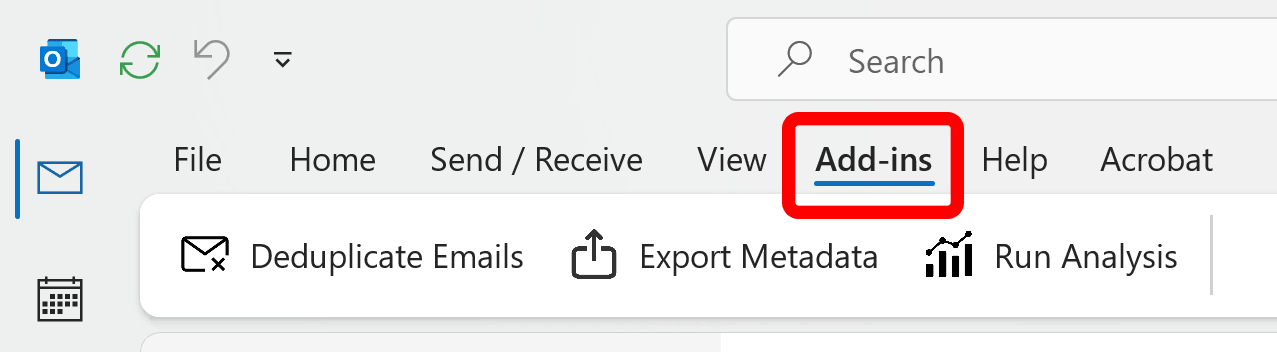
Start Microsoft Outlook and select Add-ins tab.
Press Deduplicate Emails button. This will open AutoDeduplicate
add-in starting screen.
- Select Email Folder
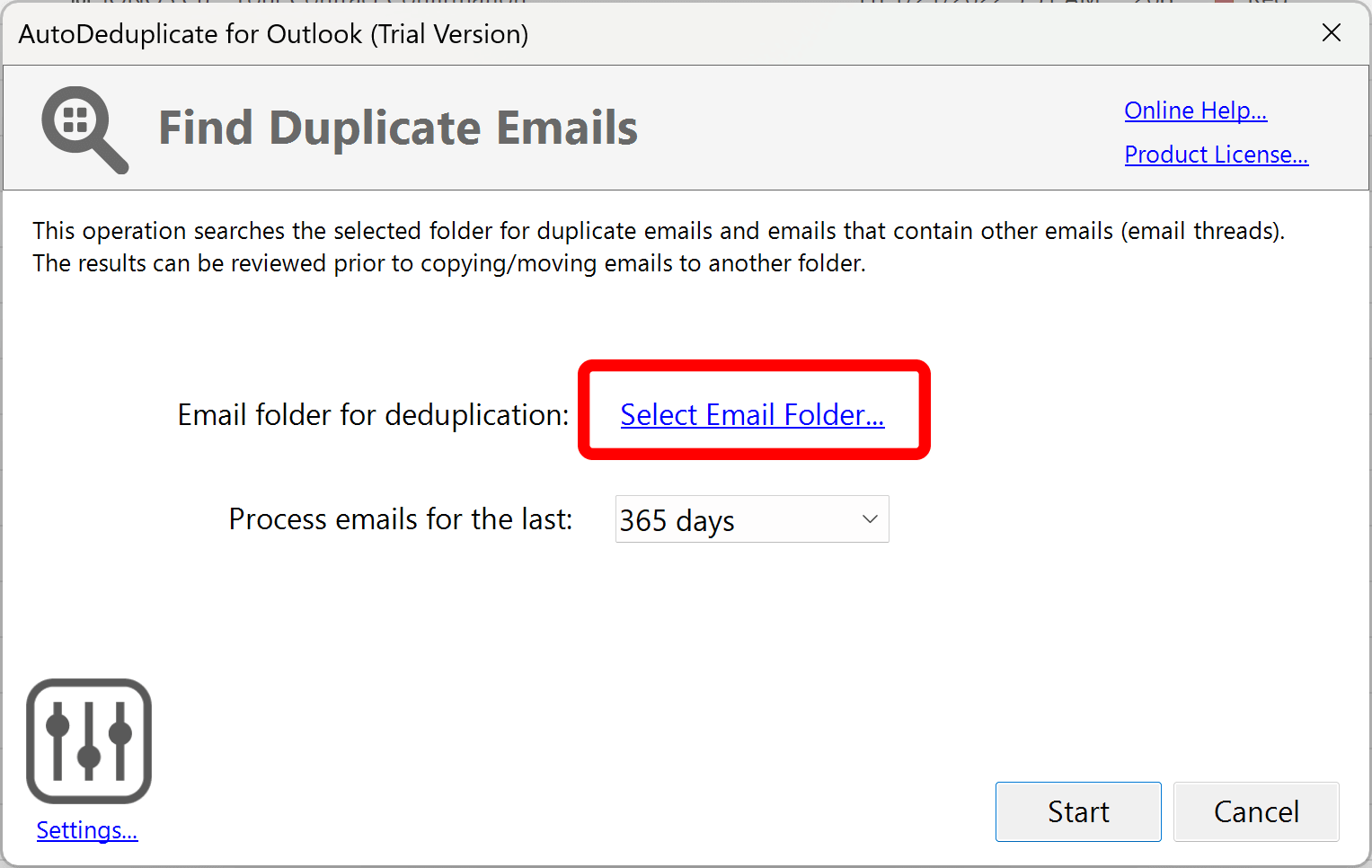
- Click on Select Email Folder... link to select folder for deduplication.
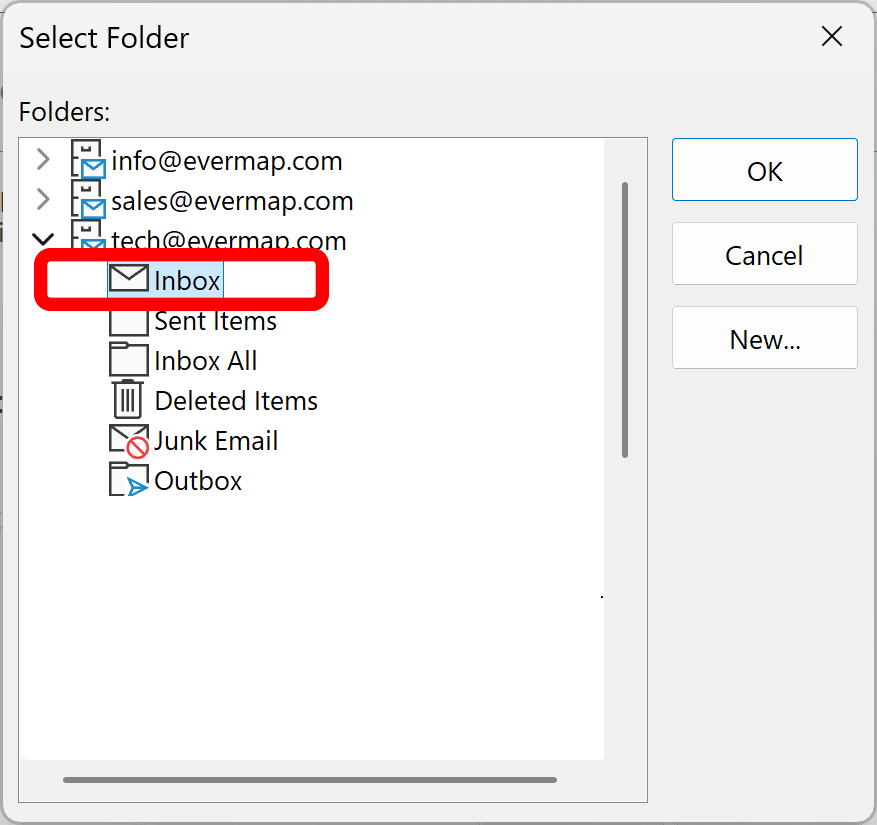
- Pick a folder under email account you want to process:
- Select Processing Time Period
- Select processing time period from a pull-down menu.
All emails received (or send) during the selected time period will be processed.
- Start Processing
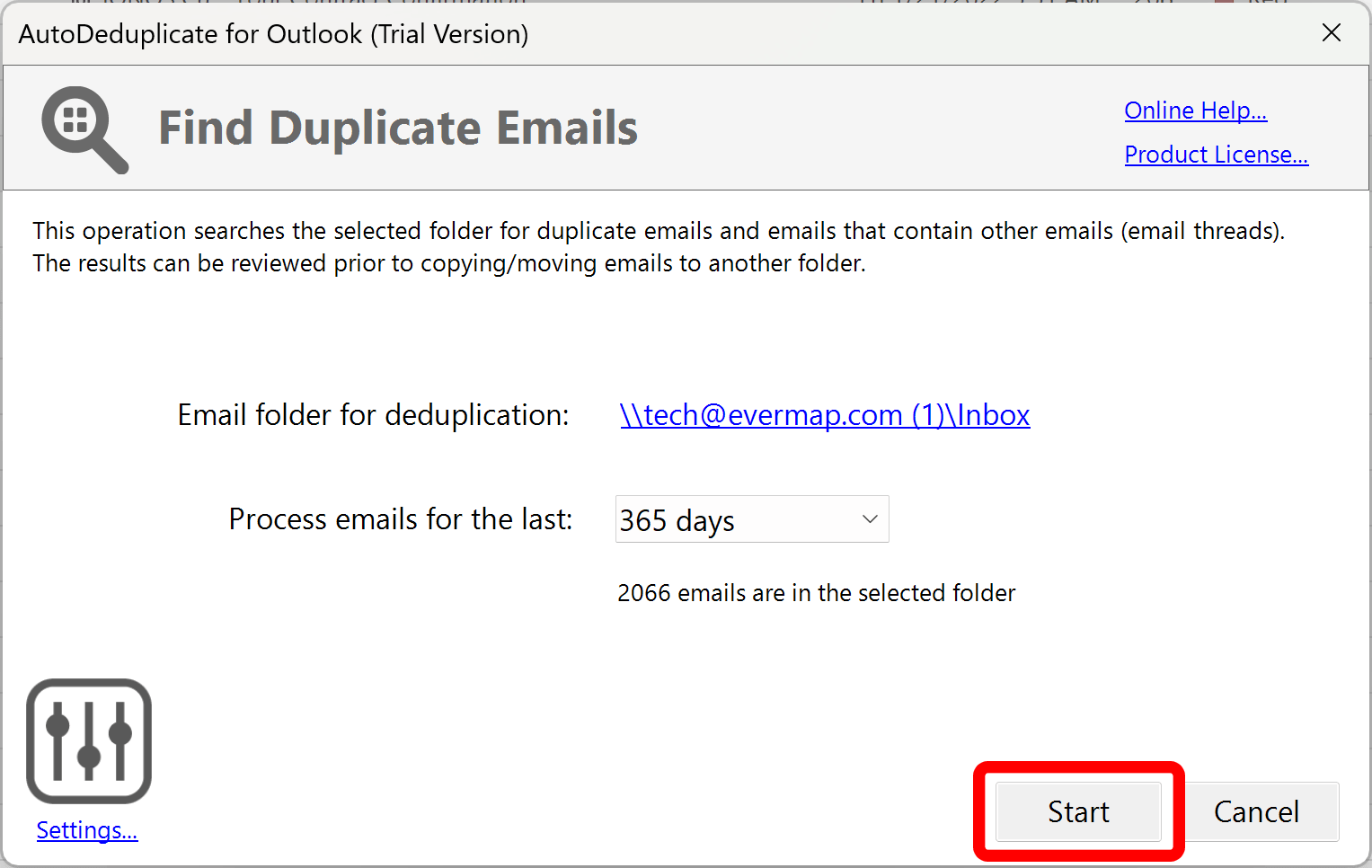
- Click on OK button to start deduplication. Processing time depends on
the number of emails in the selected processing range.
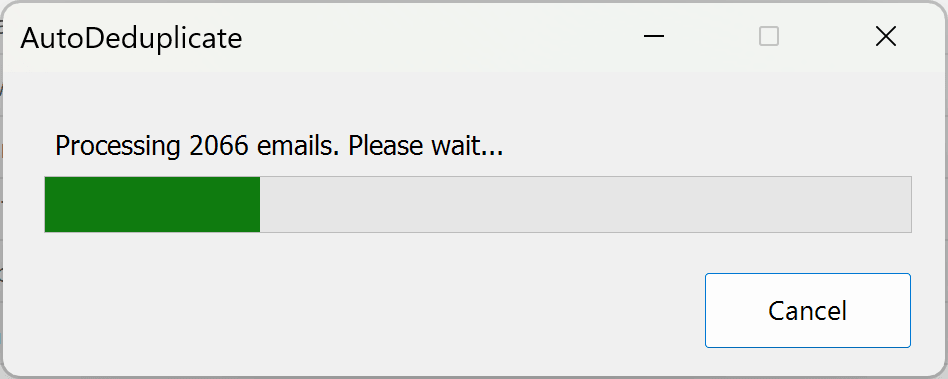
- Progress bar will appear on the screen:
- Review the Results
- Review the deduplication results.
The report dialog shows the number of duplicate emails and lists all duplicates in the
report view. All duplicate emails are shown below the last email in the thread that contains
their content.
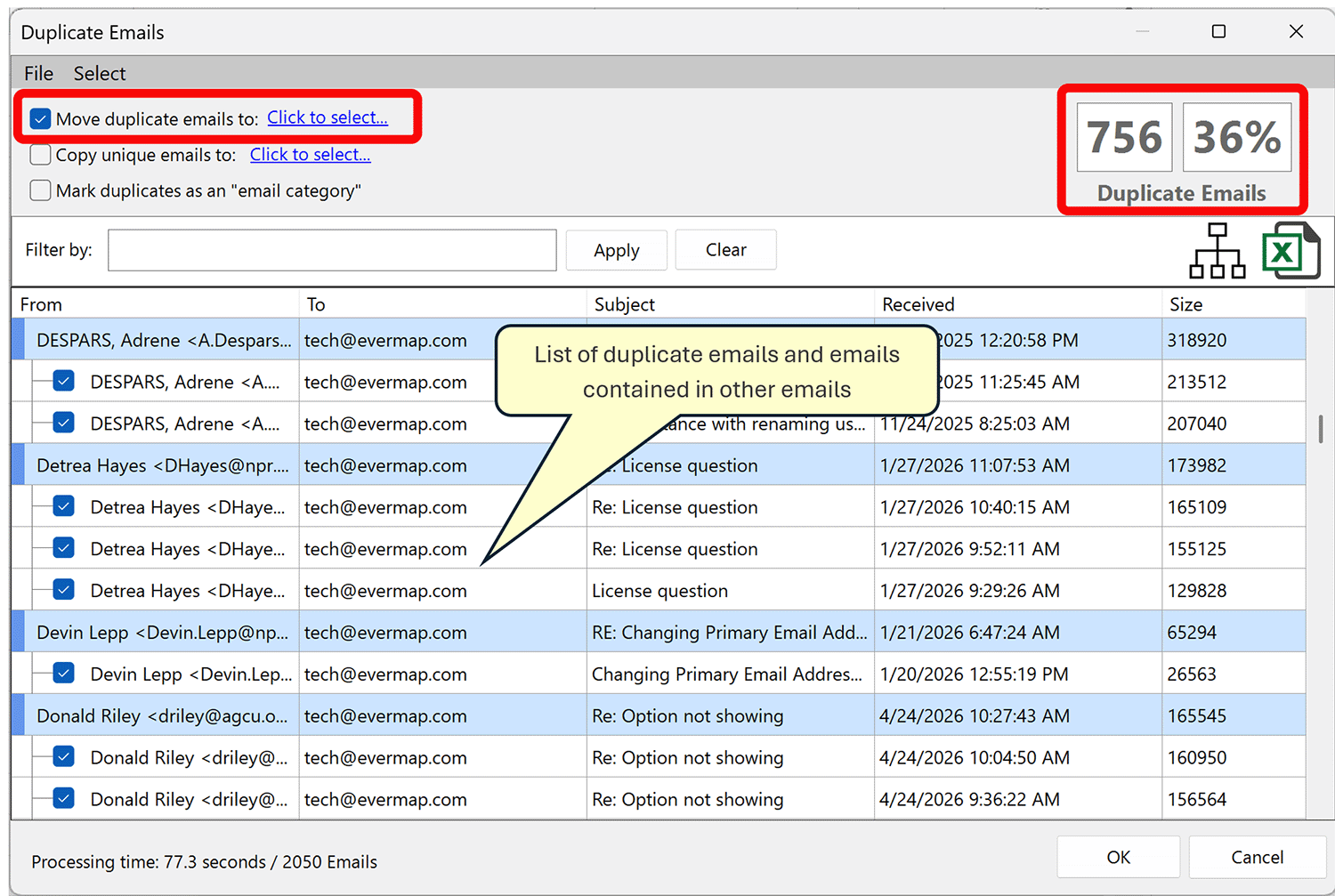
- Double-click an email to compare it side-by-side with its unique parent email.
Parent emails are displayed with a blue background and do not have a checkbox.
Each parent email fully contains the content of the emails listed beneath it,
which are shown with checkboxes and represent redundant messages.
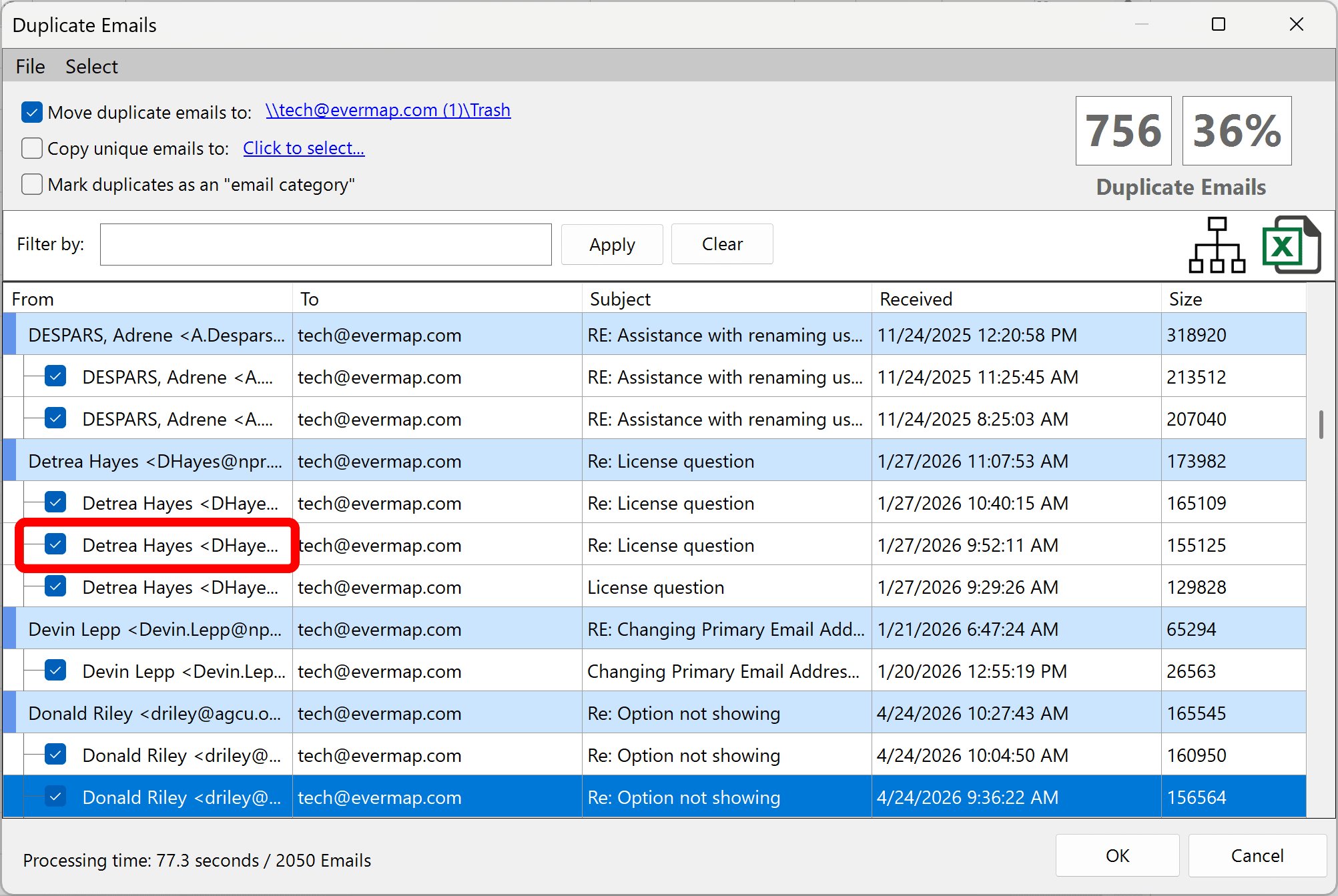
- Uncheck a duplicate email if you believe that it should not be considered a duplicate. It will
be excluded from the next processing step.
- Move Duplicate Emails to Another Folder
-
Emails can be moved to a selected folder (Trash for example) and/or marked as
special "category" in Outlook.
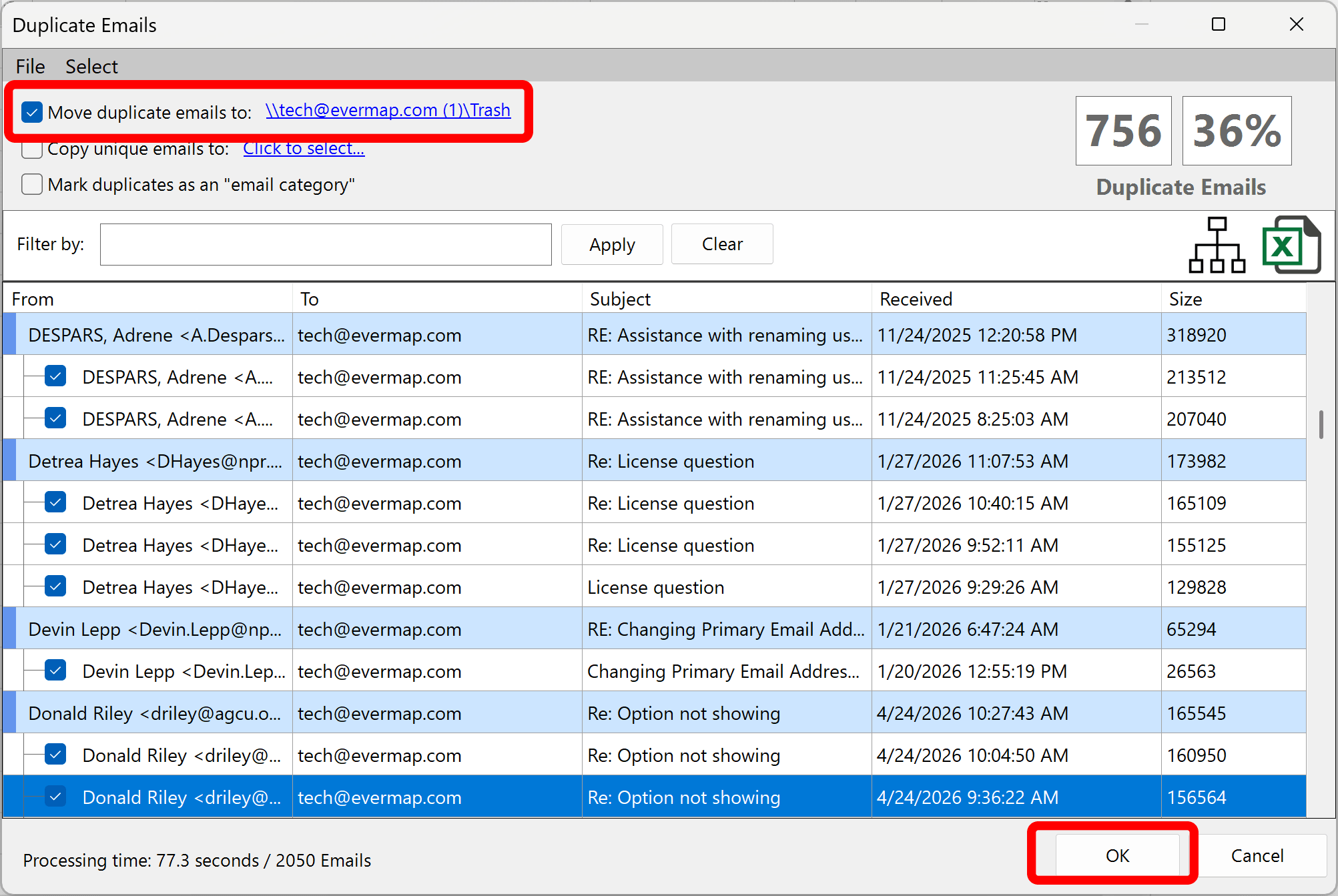
Check Move Duplicate Emails To box and click on a link next to it to select
a folder where to move emails. Press OK button to start moving the emails.
- Processing Speed
- Processing speed depends on the number of emails in the folder, the selected date range,
and the text comparison options. During the first run, AutoDeduplicate builds a fingerprint
database for the folder. This database is reused on subsequent runs, making future processing
significantly faster. On a typical laptop, the software processes approximately 25–30 emails per
second under average conditions (number of emails selected for processing around 3000).
Processing speed (per email) decreases as the number of emails increases. For very large email collections,
performance can be improved by processing the mailbox in smaller date ranges, gradually expanding the
time horizon with each successive run.
- For regular mailbox maintenance, such as weekly or monthly decluttering, processing is typically much
faster. Only newly received emails need to be analyzed, while previously processed messages already have
precomputed fingerprints that are reused, significantly reducing processing time.

