Automatically Synchronizing PDF Pages with Bookmark Order
AutoBookmark for Adobe® Acrobat®
- Introduction
- AutoBookmark can automatically reorder PDF pages when you drag and drop bookmarks in Acrobat's
Bookmarks panel. This makes rearranging sections of a PDF as simple as moving a bookmark
- all pages associated with that bookmark instantly shift to the correct position in the document.
Since PDF bookmarks natively point to a single page, there is no built-in way to assign a page range to a
bookmark directly. AutoBookmark works around this by treating each bookmark as the start of a section,
spanning all pages from that bookmark up to the beginning of the next one. This allows entire sections
of a PDF document to be moved as a single unit just by repositioning their bookmark.
- Auto-Synching Options
- The following processing options are available (can be turned on/off separately):
- Automatically move page(s) when PDF bookmark is moved in the Bookmarks panel.
- Delete bookmark when a corresponding PDF page is deleted.
- Automatically sort pages based on bookmark order when a new bookmark is inserted.
- Automatically sort pages if PDF bookmark is modified (for example, destination page is changed).
- Enabling Auto-Synching
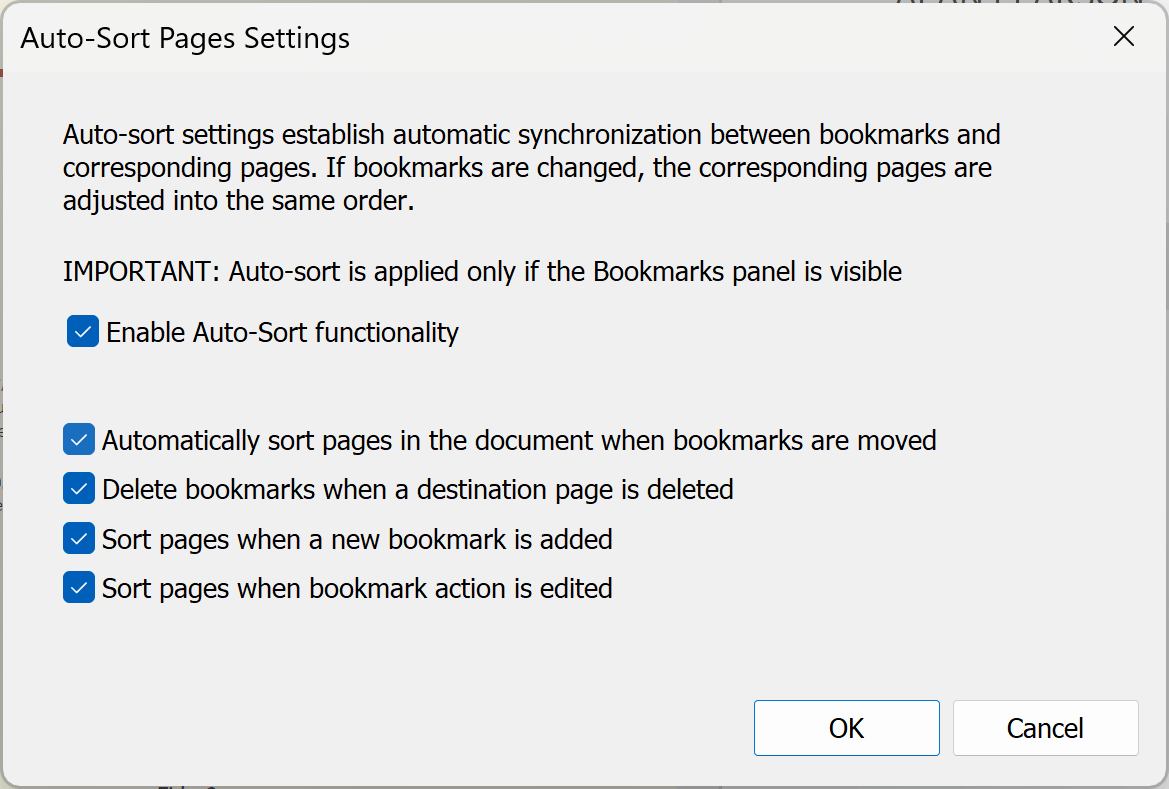
- Use Plugins > Bookmarks > Sort > Auto-Sort Pages into Bookmark Order menu to turn this
mode on/off. Use Plugins > Bookmarks > Sort > Auto-sort Pages Settings... menu to
configure processing options.
- [⚡ How to locate Plugins menu in Adobe® Acrobat® ⚡]
- How It Works
-
Simply drag a bookmark to its new position and AutoBookmark instantly reorganizes the corresponding pages
— making it the fastest way to reorder PDF pages, restructure chapters, or reorganize multi-section documents.
Whether you are editing a PDF report, rearranging a book manuscript, or restructuring a technical manual,
or reordering sections of a legal document such as a contract, brief, or agreement,
AutoBookmark turns what was once a tedious multi-step process into a single intuitive drag-and-drop operation.
It is the ultimate PDF page management tool for anyone who works with long, heavily bookmarked documents
on a daily basis.
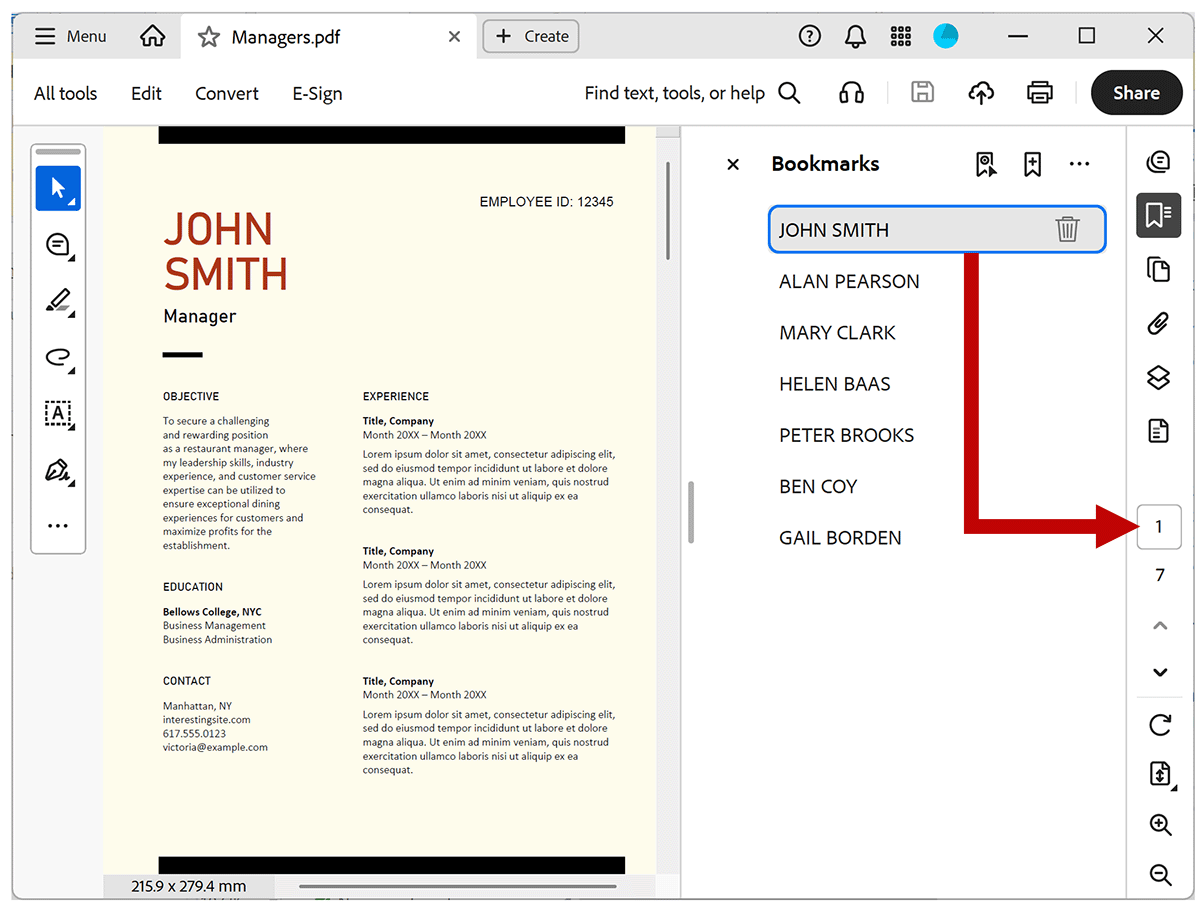
- The following screenshot shows a document view with a first bookmark selected (JOHN SMITH).
It is pointing to page 1 in the document.
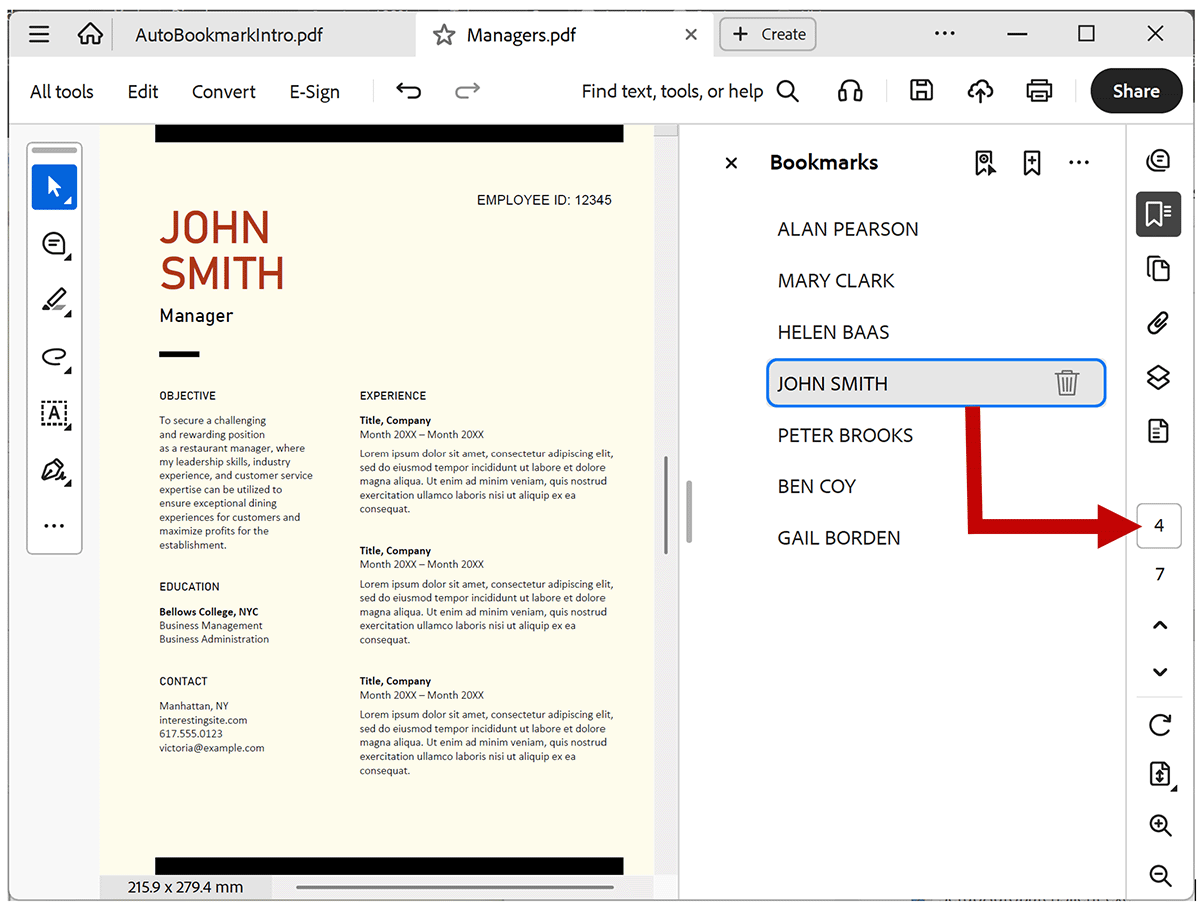
- The following screenshot shows a document view after bookmark was moved into a
different position in Bookmarks panel. It is now in position 4 in the bookmark list.
It is now pointing to page 4 in the document. Corresponding page was automatically moved
into a correct position to maintain a correct order of PDF pages and bookmarks.
Bookmarks can be moved in Bookmarks panel by a simple drag and drop.