Replace PDF Pages by Text Search
AutoSplit for Adobe® Acrobat®
- Introduction
- The Replace PDF Pages by Text Search function in
the AutoSplit™ plug-in
for Adobe Acrobat automatically searches a PDF document for user-specified keywords or text
patterns and replaces the matching pages with the first page from a selected replacement PDF.
-
This feature is useful for anyone who needs to update PDF documents without manually locating and
replacing pages. Common applications include product catalogs, technical manuals, legal documents,
engineering documentation, compliance manuals, and other large PDF publications that require periodic
revisions.
-
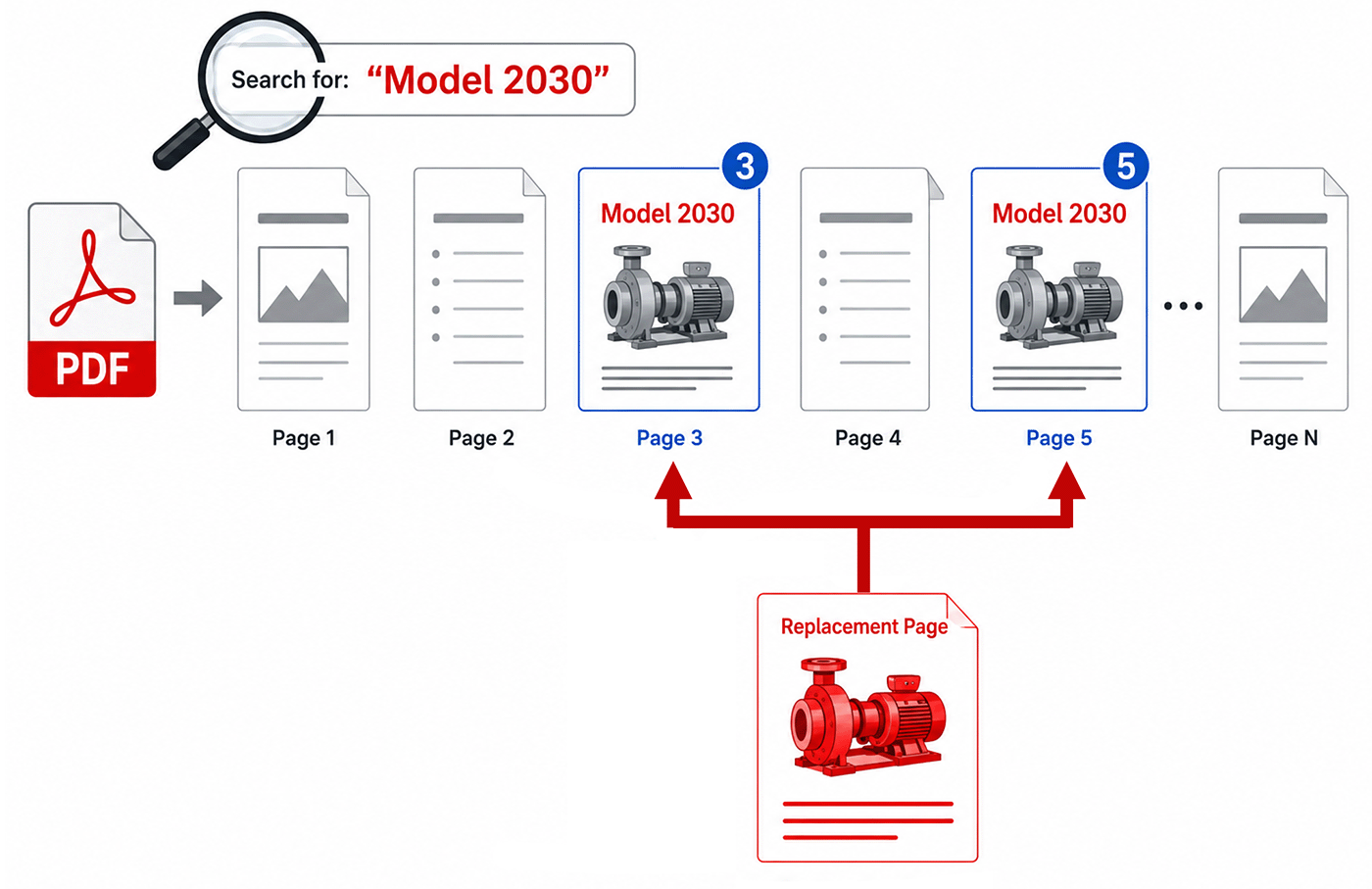
For example, a manufacturer may need to update a product catalog after releasing a new version of a
product. Rather than manually searching hundreds of pages, the operation can locate every page
containing a product number or model name (such as "Model 2030") and replace each matching page
with an updated version containing the latest specifications, images, certifications, and pricing
information.
-
To prevent accidental changes, AutoSplit does not replace pages immediately. Instead, it displays
a list of all matching pages for review, allowing you to inspect the search results and include
or exclude individual pages before performing the replacement.
-
This tutorial explains how to search a PDF for specific text, review the matching pages, and replace
them with updated content in a single operation.
- Step-by-Step Tutorial
- Open PDF File
- Open a PDF file that you want to process and select Plugins >
Split Documents > Delete or Replace Pages by Text Search from the menu.
[⚡ How to locate Plugins menu in Adobe® Acrobat® ⚡]
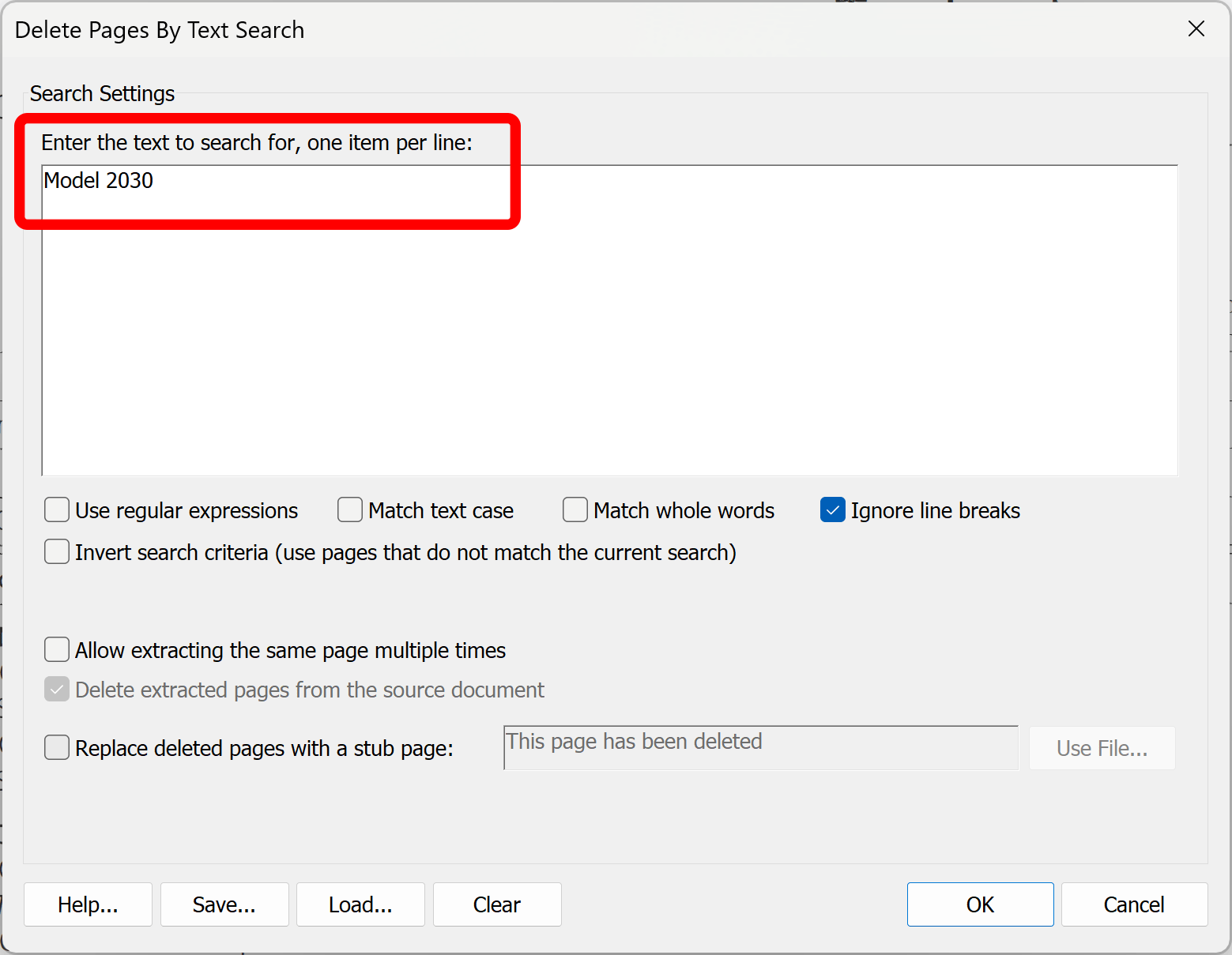
- Specify Search Text
- Enter search text into the "Find text" box. You can search for multiple keywords or patterns. Specify one keyword per line.
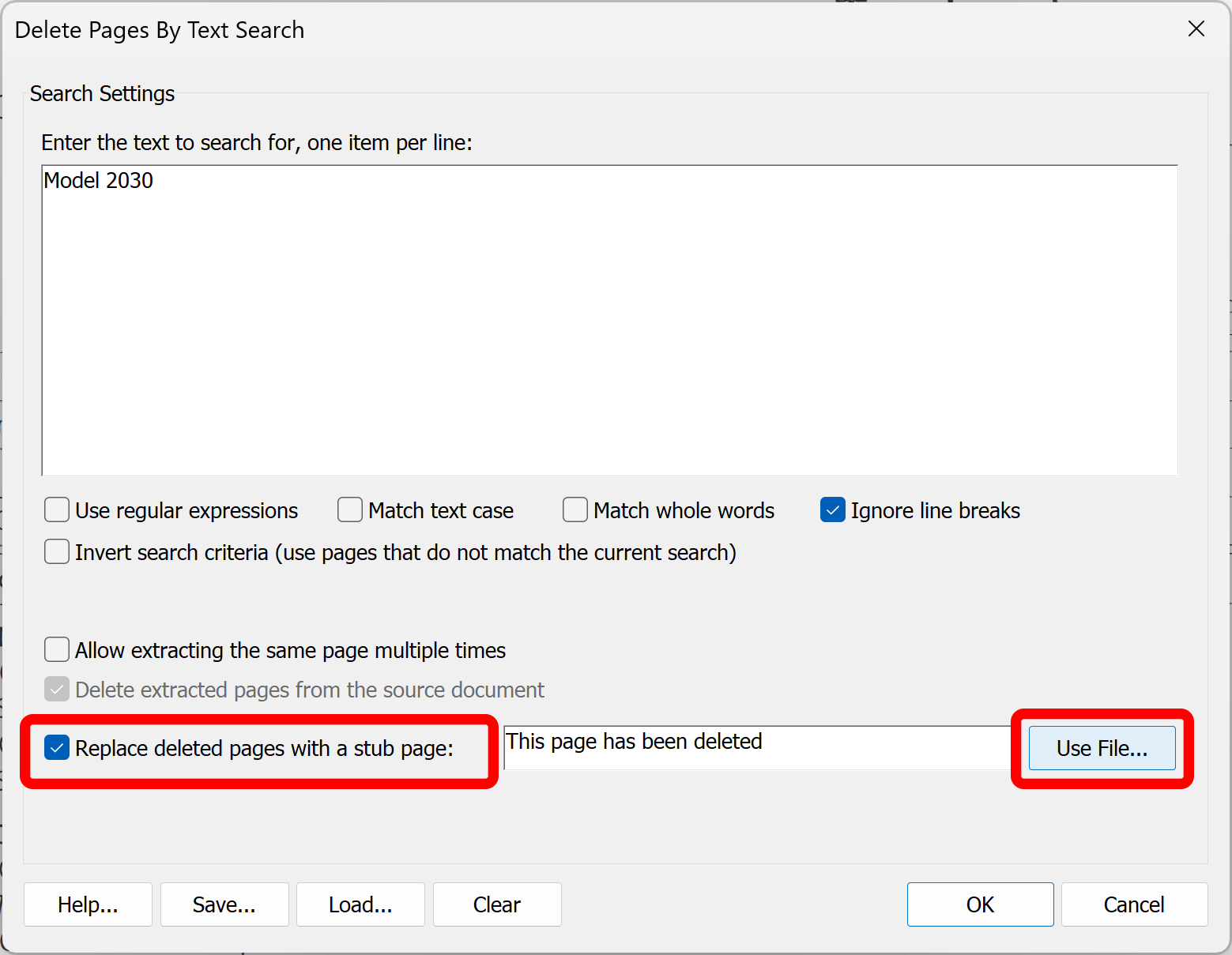
- Specify Replacement Page
- Check "Replace deleted pages with a stub page" option and press "Use File..." button to select a PDF file.
First page from this file will be used for the replacement.
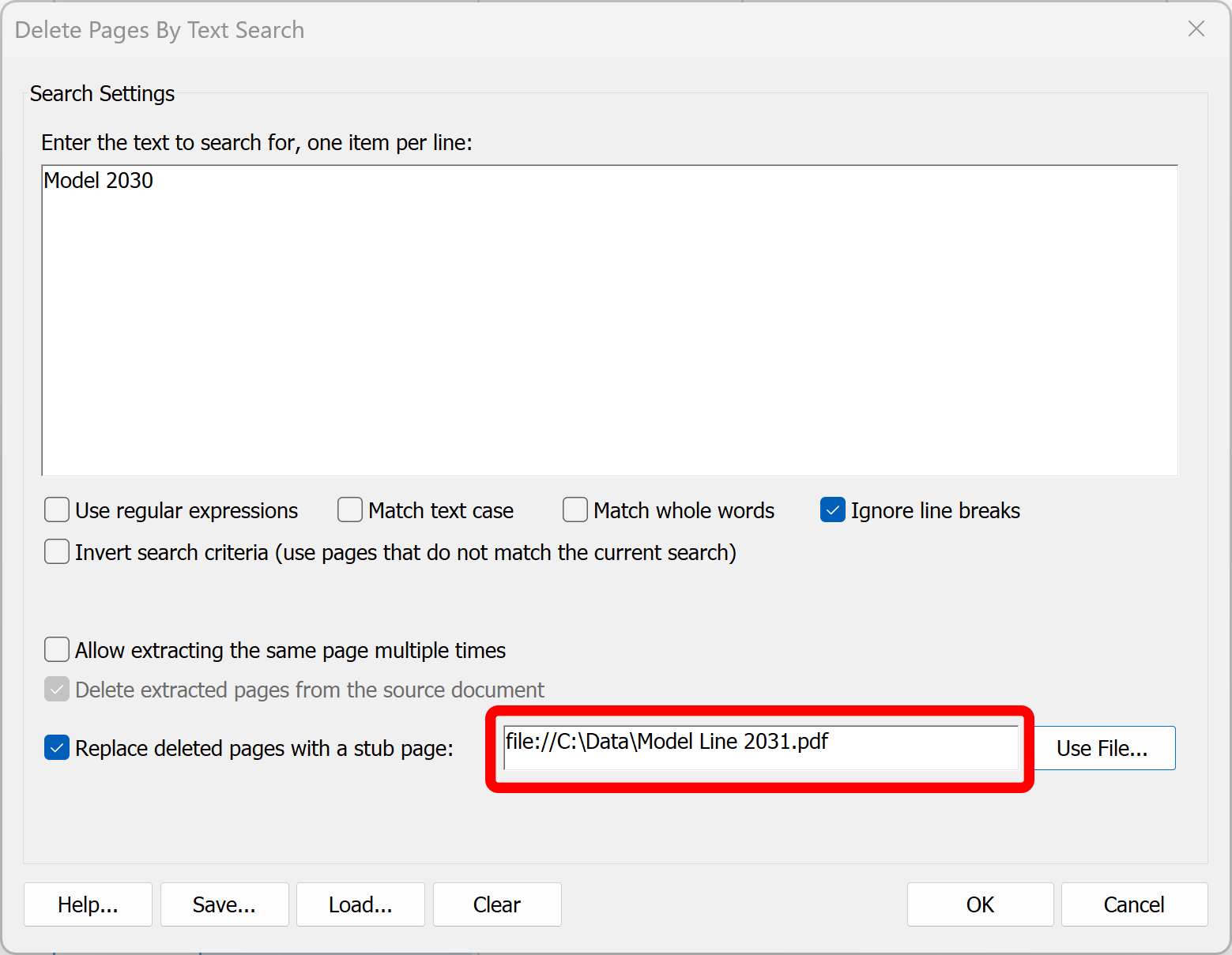
- Run Search
- Once the file is selected, press OK button to start processing.
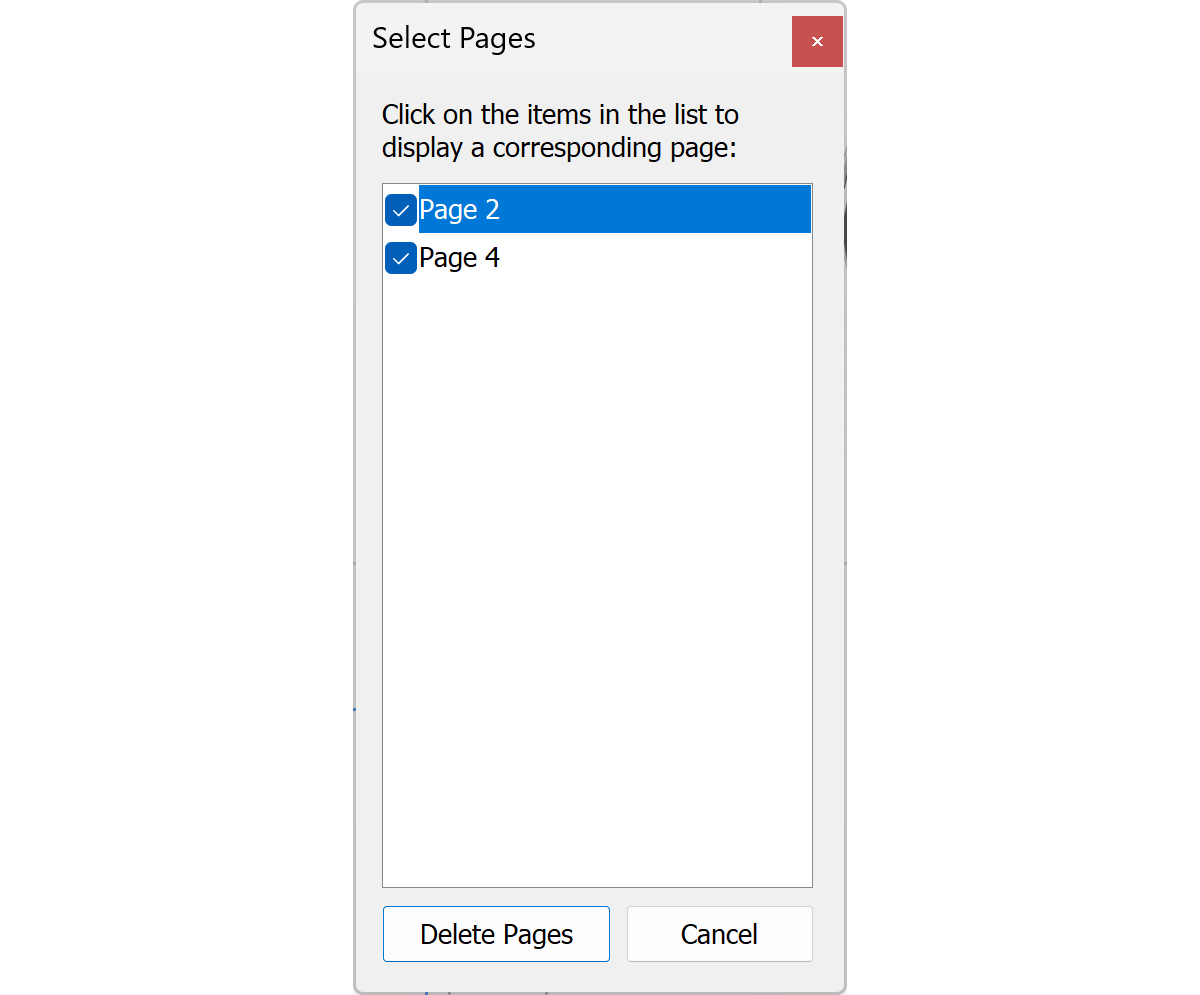
- Confirm Pages for Replacement
- Review the results by clicking on each page in the list. Clicking on the page will
display it in the document view. Optionally, deselect page(s) if they do not need
to be included into replacement.
- Review the Results
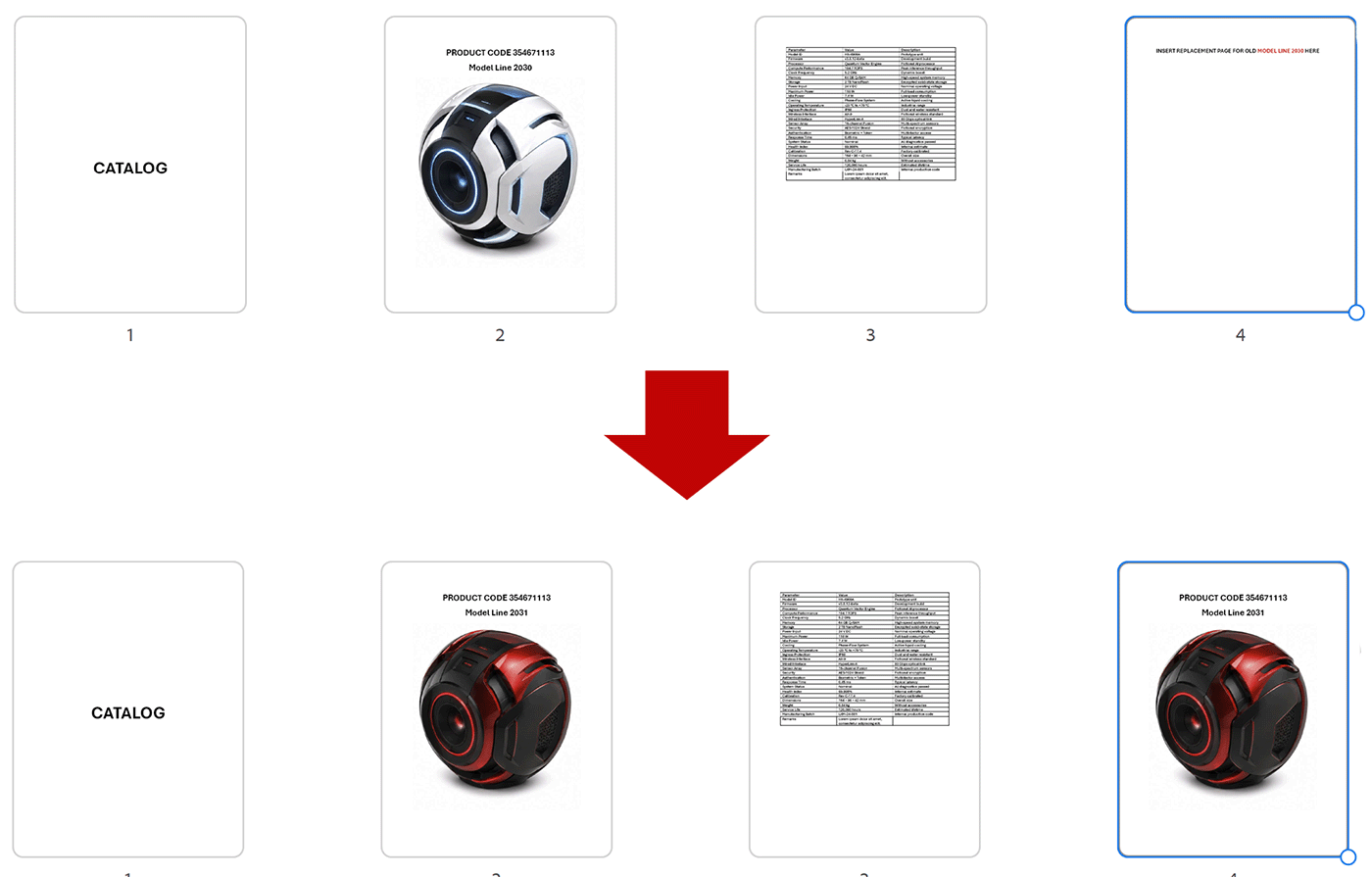
- Review the resulting PDF document. Here is an example of two PDF pages being replaced with a page from
another document.
- Video Tutorial
- There is a video tutorial available for
this operation on Youtube.

