Creating PDF Table of Contents from Selected Bookmarks
AutoBookmark for Adobe® Acrobat®
- Introduction
-
The AutoBookmark plug-in for Adobe Acrobat provides a powerful option for automatically generating a table of contents (TOC) from PDF bookmarks. The TOC can be generated from all bookmarks in a document or, when more control is needed, from only a specific subset of bookmarks.
-
This tutorial focuses on the options available for generating a TOC from only selected bookmarks,
based on their content or appearance. These filtering options are located on the
Content tab
of the Table of Contents Settings dialog.
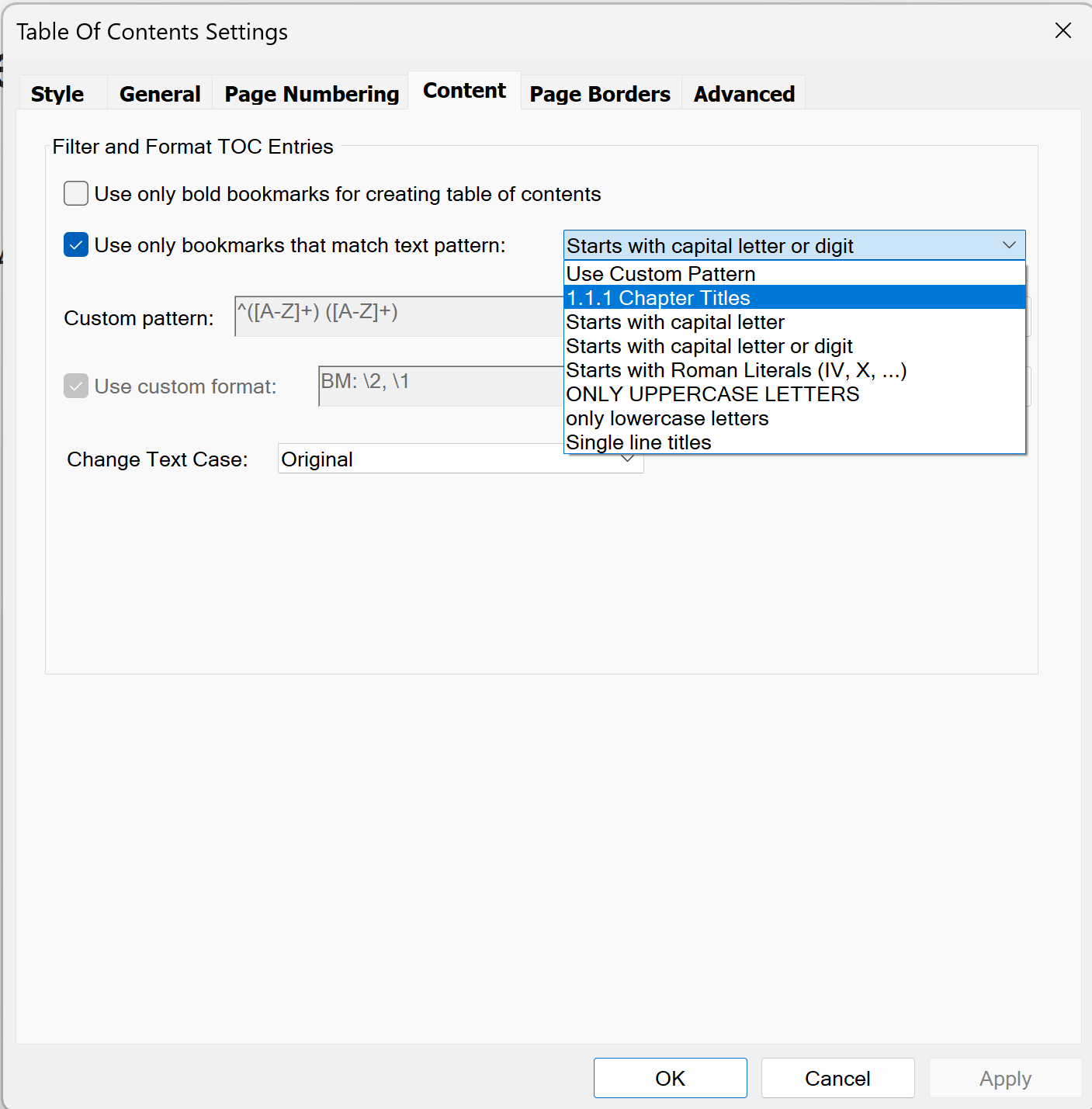
- Filtering Bookmarks by Their Text
- To generate a TOC from bookmarks that match a specific text pattern,
enable the Use only bookmarks that match text pattern option.
You can then select the desired content filter from the pull-down menu.
-
AutoBookmark includes several predefined filtering options that cover many common document structures.
These filters identify bookmarks based on the way their titles are written, including:
-
- Bookmarks that start with numeric chapter prefixes, such as 1.2 or 1.2.3.
- Bookmarks that start with capital letters or digits.
- Bookmarks that start with Roman numerals.
- Bookmarks written entirely in uppercase letters.
- Bookmarks written entirely in lowercase letters.
- Bookmarks that contain only a single line of text.
- These predefined filters are useful when the bookmarks follow a consistent naming convention and the
desired TOC entries can be identified by their titles alone.
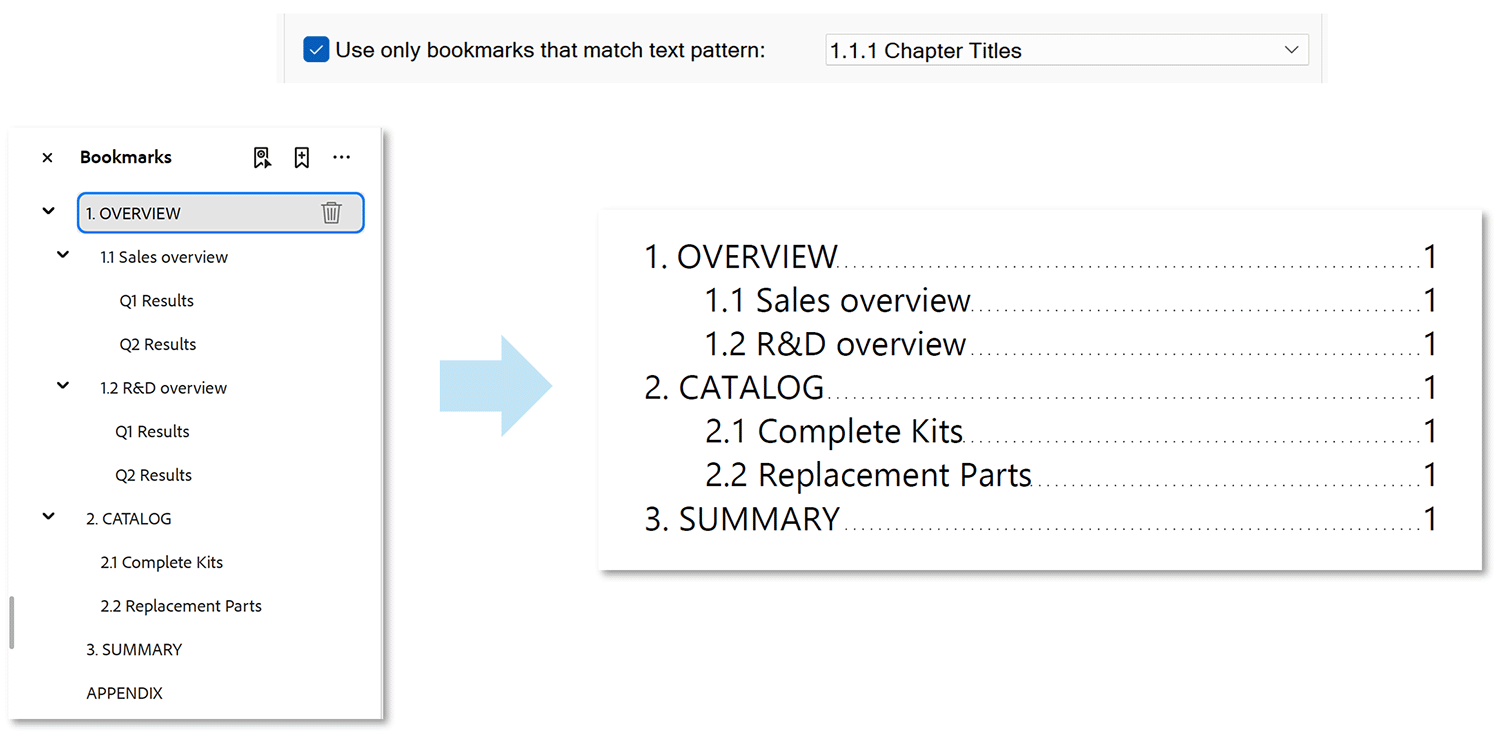
- Here is an example of creating TOC only for the bookmarks that start with a numeric chapter prefix:
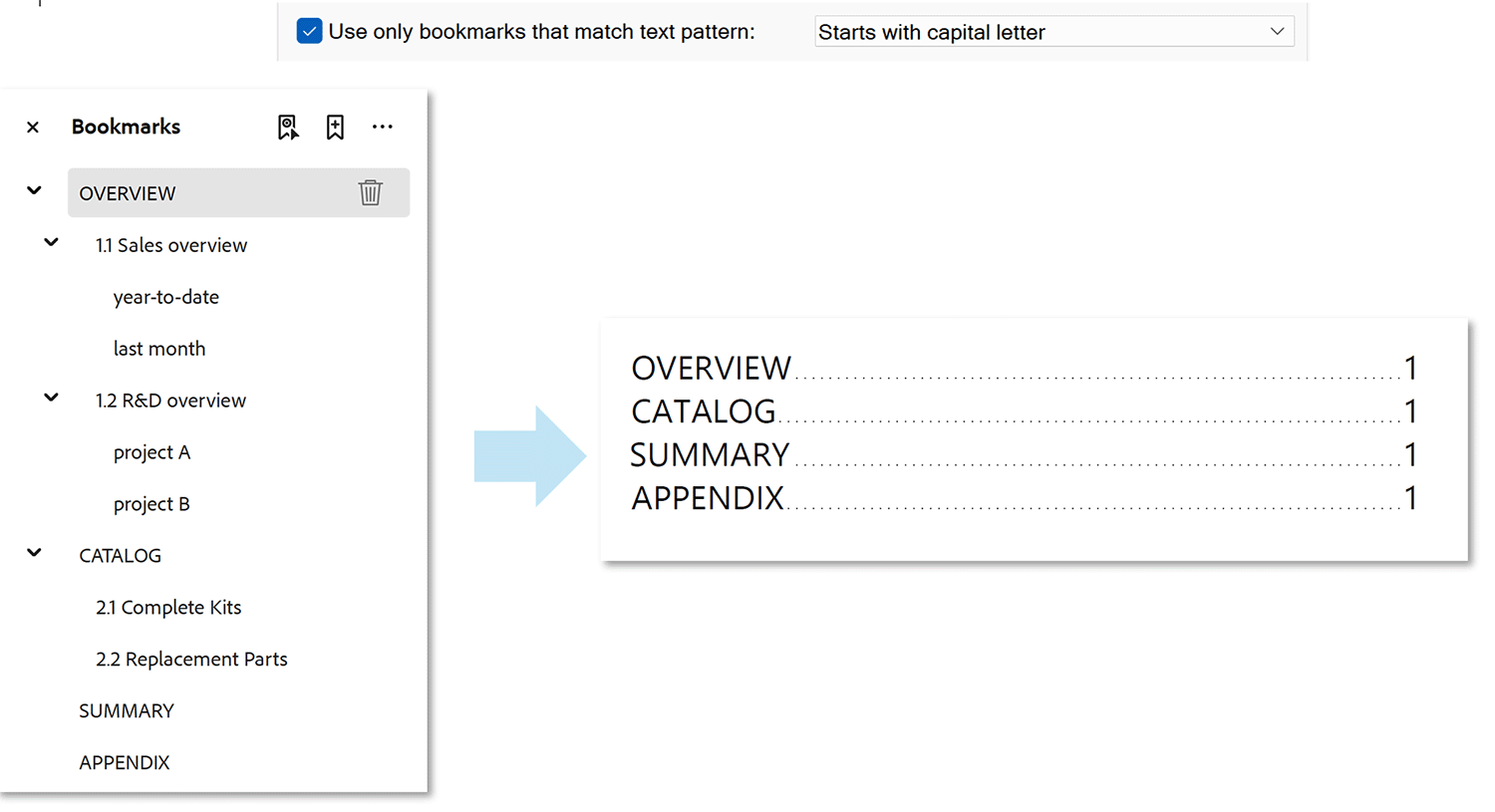
- Here is an example of creating TOC only for the bookmarks that start with a
capital letter and skipping all other entries:
- Using Custom Patterns
- If none of the predefined filters matches the structure of your bookmarks,
select Custom Pattern. This option allows you to define your own filtering
rule using regular expression (regex) syntax.
-
Custom patterns provide significantly more flexibility. In addition to determining
which bookmarks should be included in the TOC, they can also be used to control how the bookmark
titles are converted into TOC entries.
-
For example, a custom pattern can be used to:
- Insert custom text into a TOC entry.
- Include only a portion of the original bookmark title.
- Remove unwanted portions of a bookmark title.
- Rearrange words or other parts of the title.
- Create a TOC entry that is formatted differently from the original bookmark text.
This makes custom patterns useful not only for filtering bookmarks but also for transforming bookmark titles into more suitable TOC entries.
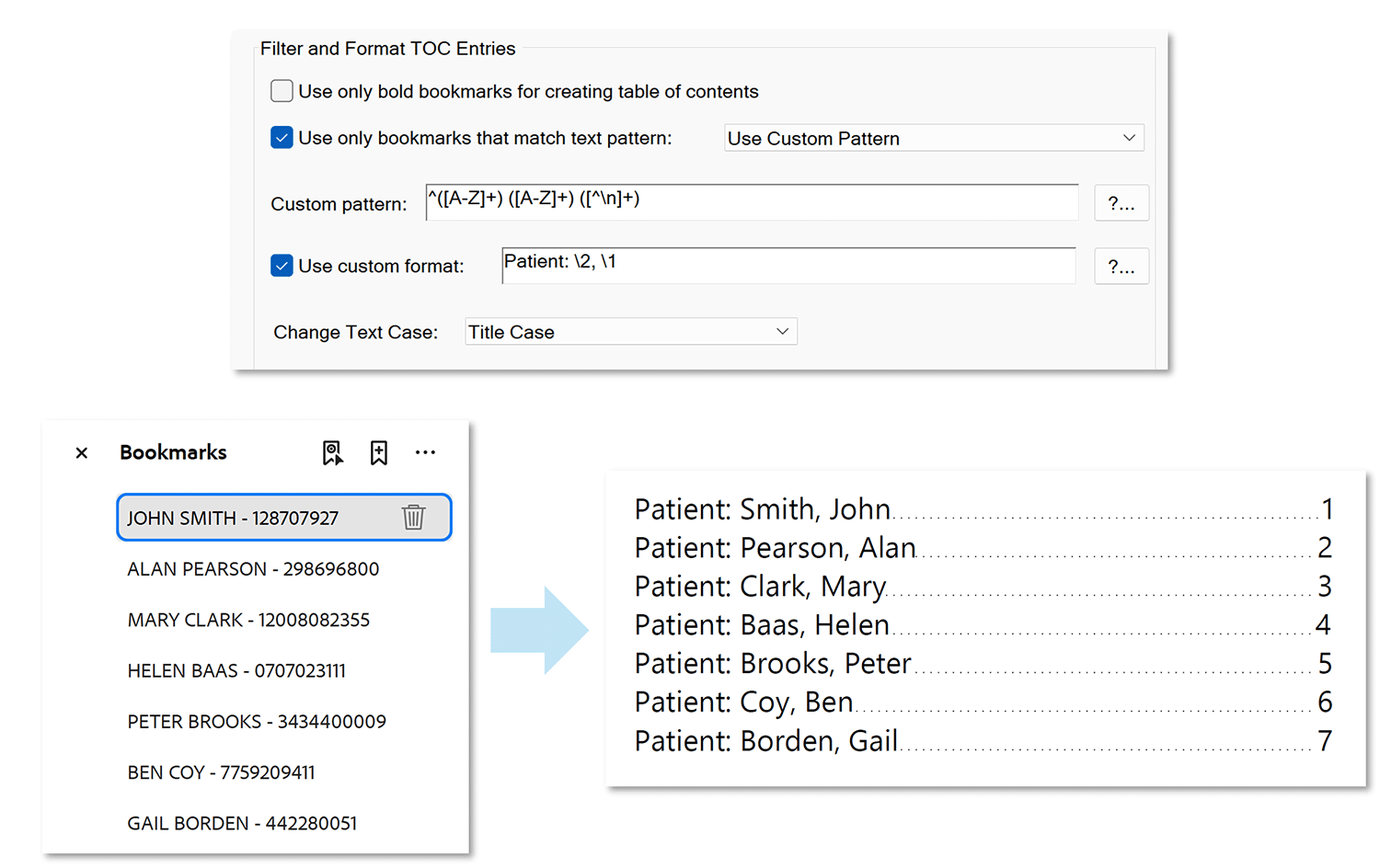
- Here is an example of creating TOC by inserting a custom text (Patient) in front of
each TOC entry, switching first and last name around, and removing unwanted text that
follows the patient name:
-
This example uses the following text pattern: ^([A-Z]+) ([A-Z]+) ([^\n]+) .
-
The pattern divides each bookmark title into three text groups. The first group, ([A-Z]+),
matches a sequence of uppercase letters and captures the first word of the bookmark title.
The second group, ([A-Z]+), captures the second word. The third group, ([^\n]+), matches the
remainder of the bookmark title up to the end of the line. By defining these groups, we can
reference specific portions of the original bookmark text in the format string.
-
The format string Patient: \2, \1 inserts the text Patient: at the beginning of
each TOC entry, followed by the second captured group (\2), a comma, and the first captured
group (\1). In this example, the first and last names are therefore reversed. The third
group is not included in the format string and is consequently omitted from the resulting
TOC entry.
-
This example illustrates three important operations that can be performed when formatting TOC entries using custom patterns:
- Insert new text into the TOC entry.
- Omit unwanted portions of the original bookmark title.
- Rearrange existing text into a different order.
-
Writing effective regular expressions can be a complex task. If you need assistance creating a custom pattern, please contact [email protected].
- Examples of Custom Patterns
-
- ^(LABORATORY RESULTS|MEDICAL RECORD) - uses only titles that start with words
LABORATORY RESULTS or MEDICAL RECORD.
- !^(X-RAY|ULTRASOUND|MRI) - uses only titles that DO NOT start with words
X-RAY, ULTRASOUND, MRI. Placing ! in front of the pattern negates the results.
- ^\d{5}\b - uses only titles that start exactly with 5-digit number.
- ^\w{3,5}\b - uses only titles that start with
indentifier that is using between 3 to 5 digits or letters or underscore.
- ^\d{2}[/]\d{2}[/]2026 LAB RESULTS - uses only titles
that start with a date in year 2026 and is followed by LAB RESULTS.
For example: 05/10/2026 LAB RESULTS.
-
^EXHIBIT [A-Z] - uses only titles that start with word EXHIBIT and
followed by at least one upper-case letter. For example: EXHIBIT B.
- Filtering Bookmarks by Their Appearance
-
In some documents, the bookmark titles do not contain any reliable text pattern that can be used for filtering. For example, the bookmarks intended for the TOC may have completely different titles from other bookmarks, making text-based filtering impractical.
-
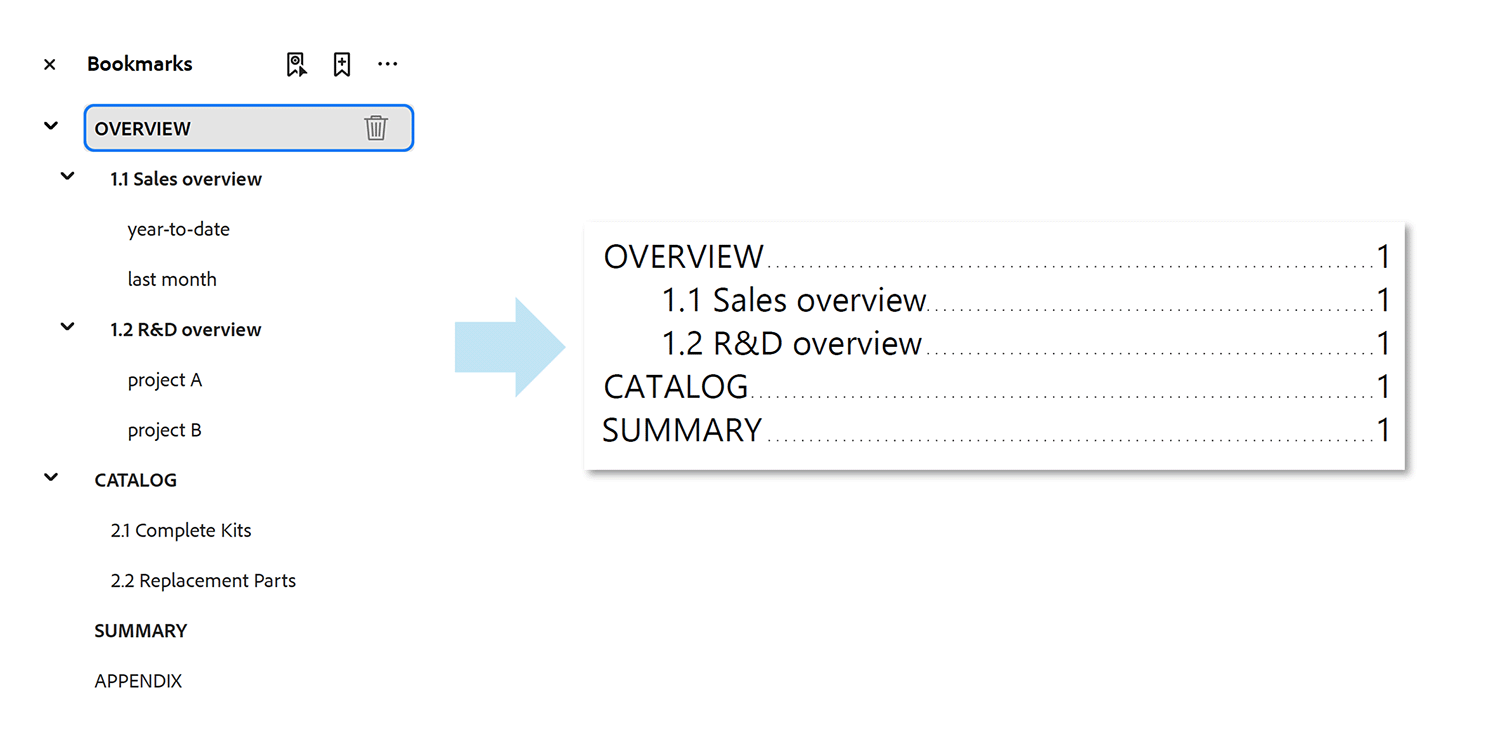
In this situation, AutoBookmark provides another useful option: generating TOC entries only from bold bookmarks.
-
Because bookmark display style can be changed independently of the bookmark title, this option provides a convenient way to manually identify which bookmarks should appear in the TOC. Simply apply the bold display style to the bookmarks that should become TOC entries and use the corresponding appearance-based filtering option when generating the TOC.
-
This approach is particularly useful when there is no consistent naming convention to distinguish the desired bookmarks. Instead of creating a complicated text pattern, you can manually mark the bookmarks you want to include by changing their appearance.
- Here is an example of creating TOC only for the bold-style bookmarks:
- Filtering Bookmarks by Their Nesting Level
- It is possible to select a subset of bookmarks for TOC generation
based on their nesting level. This option is located on General tab for
historical reasons.

